Manual
Remote HMI V7
Industrial-Grade Thin-Client Firmware

About this documentation
This documentation describes the set-up and operation of the Remote HMI V7 Firmware, henceforth referred to as "firmware".
The Remote Device Manager, henceforth referred to as Device Manager, is available for the configuration of the firmware and the administration of licences.
Registered trademarks
The products and services referred to in this documentation are registered trademarks and as such the property of their manufacturers.
Target group
This documentation is intended for administrators and production engineers who are authorised to parametrise HMI systems and set up remote connections.
Layout features
This documentation uses the following symbols, highlights and notes:
NOTICE Notes on system security and how to avoid data loss |
 | Important information on workflow and its optimisation |
| Notes on Pro licence functions |

- List
Heading of an instruction
- Work step
Interim result - Work step
- Result of action
| Apply | indicates a button on the user interface |
| Dashboard | indicates a register, menu or a function of the user interface |
| [F8] | indicates a key of the keyboard |
Contact details
| R. STAHL HMI Systems GmbH | |
| Adolf-Grimme-Allee 8 | |
| 50829 Köln | |
| Germany | |
| Telephone: | +49 221 76806-1200 |
| Fax: | +49 221 76806-4200 |
| Homepage: | r-stahl.com |
Contact Support
| Telephone: | +49 22176806-5000 |
| E-mail: | [email protected] |
Description
Function
The Remote HMI V7 firmware is a Thin Client software developed for the process industry which is supplied together with R. STAHL SERIES 500 operating devices. It is used to establish and secure remote connections to one or more workstations or application servers. This makes remote access from one operating station to one or more workstations or servers possible.
System functions
| Function | Description |
|---|---|
| Access authority | 3-tiered access authority management System settings and installation of applications by administrator only |
| Auto Connect | Automatic connection to the host after start-up |
| Diagnosis function | Detection of network or host failure |
| Teaming (Backup) | Redundancy based on automatic switch to a different network adapter |
| Network test | Integrated ping function to monitor the remote connection |
| Clean touchscreen | Disables touchscreen function for cleaning purposes |
| Touchscreen adjustment | Adjustment of the touchscreen by the user (brightness, right mouse button, calibration) |
| |
| Multi-session operation | Parallel remote connections enabling users to switch fast between connections, or allowing for the simultaneous display on a split screen |
| App management | Fast access to applications and application programs |
| Camera connection | Setting up a camera connection on the HMI |
| Keyboard and pointing device sharing | Joint use of keyboard and pointing device with other HMIs |
Suitable for device platforms:
- GETAC Tablet F110 G6
ORCA xxA
SHARK i5 Siemens
MANTA mITX Apollo Lake
The devices are connected to the Ethernet via the Ethernet interface. The number of available Ethernet adapters varies depending on the device platform.
Supported pointing devices
Various pointing devices such as trackball, joystick or touchpad are available as accessories. These are supported by the firmware, also in combination with industrial keyboards. Should you require further information, please contact: R. STAHL HMI Systems GmbH.
Licencing models
The following licence models of the firmware are available for the Thin Clients:
- Basic
Basic licence for establishing remote connections, configuring the firmware and for importing and exporting settings. - Pro
Licence extension for using and managing applications, using multiple parallel remote connections, keyboard sharing, camera connections as well as importing and exporting settings.
Configuration file
The configuration file contains the device parameters and the settings of the Thin Client. They can only be opened at the Thin Client.
The "RemoteHMI.config" configuration file can be exported to the root file of a USB mass storage device or a network directory. The exported file is encrypted and can be imported after a reset or into another device, for example (see Import and Export).
Supported remote protocols
The HMI operating stations and the Industrial Box PCs are integrated as Thin Clients and use the available network resources. Depending on the network architecture and access authority level, a remote connection can be established via the IP address to any Ethernet station. The firmware supports the Remote Desktop Protocol (RDP), Virtual Network Computing (VNC) and Keyboard Video Mouse over Internet Protocol (KVM over IP). The Thin Client can use the firmware to call up applications installed on the connected workstations or installed on virtual servers.
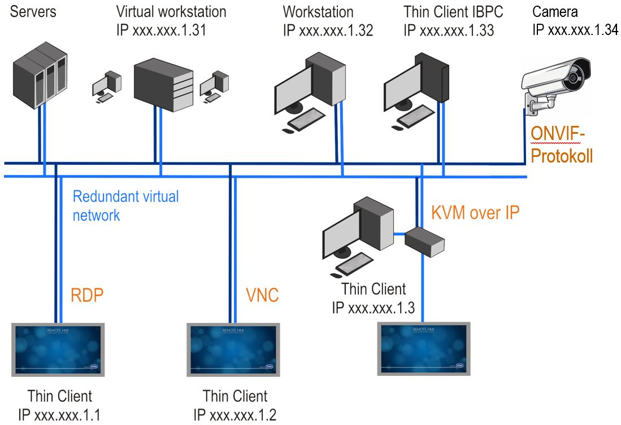
The illustration shows a redundant virtual network. It connects Thin Clients via an RDP, VNC or KVM-over-IP connection with workstations and servers. In such a network, every Thin Client can access connected systems and call up applications from there.
RDP
The Remote Desktop Protocol (RDP) is a protocol for remote access. It can be used to display and control screen content of a remote workstation. RDP is an integral part of all Windows operating systems.
A special session is started on the server for the RDP access, and only the connected client can access this session.
The size of the displayed screen content is determined by the Thin Client's display size. If the screen content is only displayed on one half of the Thin Client it will be scaled accordingly.
A Windows server is required for several RDP connections to access one server. A client access licence is required for each client to access and connect to the Windows server. Licencing depends on the operating system of the server.
Either the computer name or the server IP address can be used for addressing.
If you want the option of redundant connections we recommend you use the DNS naming system.
VNC
Virtual Network Computing (VNC) is a platform-independent server system. VNC operates according to the Client-Server model.
The VNC service displays the screen content of a remote PC (server) on a local computer (client). The client sends the keyboard and mouse actions to the remote server. This way, the client can use the resources, applications and programs of the server.
The server's display size determines the size of the displayed screen content. If the server display screen ratio is different to that of the Thin Client, the screen content will be compressed or displayed with black edges.
VNC allows multiple access to the server. The display of the clients is then synchronised.
The VNC service must be installed on the remotely controlled PC (host). The Thin Client accesses the VNC server via a VNC viewer application. The installation and configuration of the VNC system on the server and the client requires administrator access authority. The VNC communication between server and client does not require this level of access authority.
VNC services are available from various providers. Depending on the VNC server, these systems have different functionalities.
| For detailed information and a description of the VNC service, please refer to the documentation of the provider. |
In order to be able to establish a VNC connection, the VNC server system must be activated on the host. The VNC service acquires the IP address needed for this connection from the settings of the PC's network connection. Depending on the configuration, the IP address is specified manually or allocated by a DHCP server. In the firmware's address book, this IP address is defined as the server IP of the VNC connection.
The way this connection is established depends on the settings of the VNC server and can either be
- a direct connection that is not password-protected
- a connection with VNC password
- a connection with Windows password
KVM over IP
KVM over IP provides remote access to keyboard-video-mouse systems (KVM). With these systems, a workstation is connected with keyboard, mouse and screen via an external KVM-over-IP box. The KVM-over-IP box is integrated into the network via an Ethernet interface. Data transmission is via the VNC protocol. A VNC service has been installed to establish the connection. The workstation that is part of the KVM system does not require a network connection or a software installation.
Camera and web
Use the camera option to select a camera by entering the IP address. This option is only available with the PRO licence. After you have entered a web address, a browser window will pop up across the entire screen. Only one active connection can be established at a time.
Security concept
System security
The Thin Client has been designed as a closed system based on Windows® 10 IoT Enterprise LTSC 2021.
As a standard, the Thin Client comes equipped with the Windows 10 IoT Enterprise operating system and activated Windows 10 LTSC.
If Windows 10 LTSC is not activated (after a reset, for example), it can be activated under menu item Maintain (see Activating Windows).
We recommend you activate the firewall and virus protection and permit all necessary security updates.
Any further measures to protect the process network are the responsibility of the operator of the facility.
Overview of security functions
| Function | Description |
|---|---|
| Operating system | Based on Microsoft 10 IoT Enterprise LTSC 2019 / 2021 |
| Remote Desktop Protocol | Microsoft RDP 10 with security functions |
| Firewall | Active Windows firewall as protection against network attacks |
| Unified Write Filter (UWF) | Protection of the directory against integration of malware or corruption of system files |
| HORM | Fast restart of a system image |
| USB lockdown | Individual lockdown or release of USB ports for USB terminals and sticks |
| Virus protection | Active Microsoft Defender for virus protection; further virus protection programs can also be installed |
| Access authority | Available remote connections and applications can be specified via user roles |
User roles
The access authority system of the Remote firmware is based on three user roles. These are tiered in a hierarchy.
| User role | Description |
|---|---|
| Operator (standard user) | The operator can switch between the displays of the connected systems and operate these systems remotely. The operator has access to the basic settings. He or she cannot make any changes to the firmware. |
| Engineer | The production engineer can set up, parametrise and delete remote connections. With the Pro licence, the engineer can add existing applications in the firmware. He or she cannot access the Windows user interface of the Thin Client. The engineer can adjust the following settings:
|
| Admin | The administrator has full access authority to the Windows user interface of the Thin Client. In addition to the options available to the production engineer, the administrator can install third-party applications and drivers on the Thin Client. He or she can configure the network, make system settings via the Remote HMI menu user interface and log into the regular Windows user interface as Admin. The following adjustments in the Settings register can only be made by the administrator:
|
The Admin and Engineer user roles can be password-protected in the Access Control menu.
When the firmware is started up for the first time, the user roles are de-activated and the firmware starts with the Admin user role. Password protection is not active.
NOTICE Access control via the "Admin" and "Engineer" user roles The Admin and Engineer user roles should only be given to staff familiar with Thin Client administration. |
Display resolutions
The Thin Client supports the display of non-native display resolutions for all types of connection. Non-native resolutions are those where the video output of the server does not correspond to the actual physical resolution of the Thin Client display. Resolutions from 640x480 (VGA) up to 2560x2048 (QSXGA) can be selected. The display and scaling behaviour varies according to the connection type and display resolution.
The supported HMI platforms correctly display every regular server display resolution from VGA to QSXGA. The aspect ratio is maintained with the maximum possible display resolution. Thus, the Thin Client can continue to be operated via the touchscreen even if there are black edges.
Display of an RDP connection
As a standard, the video output of the server is started with the native resolution of the Thin Client.
Display of a VNC connection
The video output of the server is displayed in the maximum possible size whilst maintaining the correct aspect ratio. Hardware or software are used to scale to achieve the maximum possible image quality.
Server resolutions higher than the native Thin Client display resolution are fully displayed. If the server resolution differs greatly from the native Thin Client resolution, the display of small structures may be restricted. Scaling may be adjusted as required to use the Thin Client display fully. This might result in a distorted display.
Display of a KVM-over-IP connection
The video output of the server is fully displayed in the maximum possible size whilst retaining the correct aspect ratio, provided the server resolution is equal to or less than the native Thin Client display resolution. Non-native resolutions might result in black horizontal and/or vertical edges.
For server resolutions greater than the native Thin Client display resolution the Thin Client switches to panning mode. Here, only part of the server image output is visible. This section can be moved when the cursor stops at a screen edge.
User interface
The system will start with the following screen.
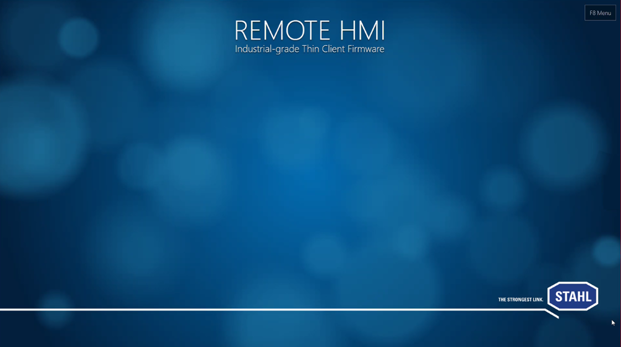
You have the following options for opening the dashboard:
- via the F8 Menu button
- by pressing the [F8/Fn] function key for the ORCA / [P2] function key for the Getac tablet
- by pressing of the keyboard icon for a couple of seconds
The [F8] function key can be changed in the User Interface menu.
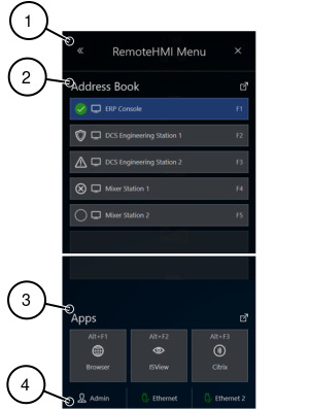
Minimised dashboard
| 1 | Navigation element leading to expanded dashboard |
| 2 | Fast access to available remote connections |
| 3 | Fast access to applications (available for Pro licence if applications have been installed and released) |
| 4 | User role, click button to open the log-on dialogue |
The contents of the expanded dashboard depend on the system configuration.
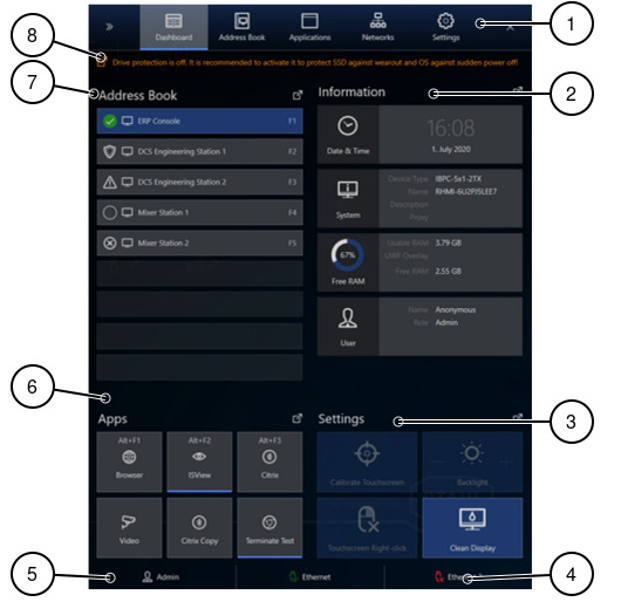
Dashboard
| 1 | Register bar |
| 2 | System information |
| 3 | Basic settings for the HMI operator interface |
| 4 | Status of Ethernet connection |
| 5 | User role, click button to open the log-on dialogue |
| 6 | Fast access to applications (available for Pro licence, if applications have been installed and set up) |
| 7 | Fast access to available remote connections |
| 8 | Notes on system security |
Register
The register bar contains the following functions:
| Register | Description |
|---|---|
| Dashboard | Overview of address book, system and connection information, basic functions and activated apps |
| Address Book | Diagnosis and management of remote connections |
| Applications | Display and management of applications |
| Networks | Display and set-up of the network adapters |
| Settings | Menus for display and set-up of system, security and network parameters |
Information
The system information contains the following data:
- Date & Time Date and time
- System Thin Client data
- Free RAM available memory
- User current user role
- Network 1 Status, IP address and speed for network adapter 1
- Network 2 Status, IP address and speed for network adapter 2
Basic settings
The basic settings contain buttons for operating the touchscreen. If no touchscreen is connected, the functions are greyed out.
| Button to start touchscreen calibration. If two touchscreens are connected you can calibrate them separately. |
| Button to adjust the display backlight. |
| Button to deactivate the display touch function for 30 seconds Buttons can then not be inadvertently activated during cleaning. |
| Button to simulate a right mouse click on the touchscreen, for example to call up the context menu of applications. |


Status of Ethernet connection
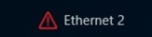
This display indicates the status of the Ethernet connection.
| Ethernet adapter is ready |
| Ethernet adapter is not ready |
| Conflict of addresses, Ethernet adapter is not ready |

Applications
Applications can only be used with a firmware Pro licence.
Once applications (apps) have been set up, they are shown as buttons. More than one app can be started. The status of the app is shown.
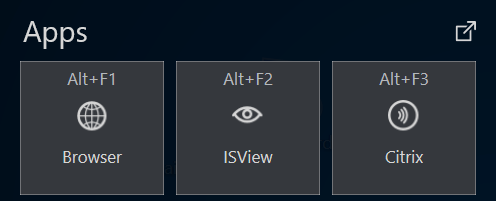
| Indicator | Meaning |
|---|---|
| inactive app |
| active app |
| app running in the background |


Address book
Remote connections can be selected from the address book.
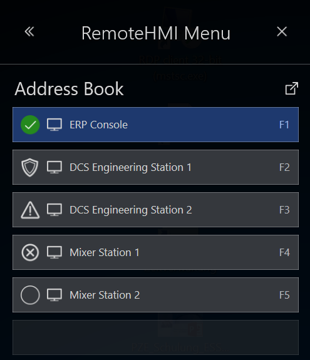
Status of the remote connection
| Symbol | Meaning |
|---|---|
| connected |
| not connected |
| connection not possible |
| Default, will be connected automatically during start-up |
| connected, parallel remote connection, active in the background (multi-session connections require a Pro licence) |
| Auto-Reconnect |


Operating elements
Navigation elements
| opens the expanded dashboard |
| minimises the dashboard |
| navigates to register or menu |

Operating elements
Operating elements vary depending on the menu.
| Element | Meaning |
|---|---|
| Button activated |
| Button deactivated |
| Button A greyed-out button is unavailable |
| Input field |
| Scroll bar |
| Check box activated |
| Check box deactivated |






Virtual keyboard
The Thin Client has a virtual keyboard and can be operated without any additional input devices.
The virtual keyboard consists of several keyboard sections. These can be displayed or hidden as required. The size of the keyboard can also be changed. This functionality is managed via the KEYBOARD control section. The keyboard can be positioned and adjusted with the following buttons:
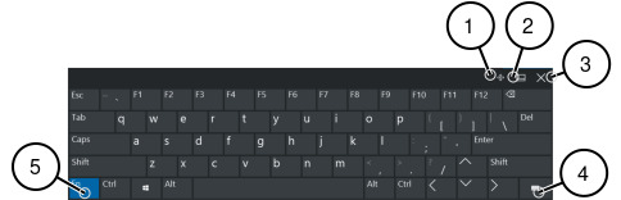
Total view of virtual keyboard (US keyboard layout)
| 1 | Free positioning of the keyboard |
| 2 | Positions keyboard at the bottom edge |
| 3 | Closes keyboard |
| 4 | Opens keyboard settings |
| 5 | Shows function keys |
The virtual keyboard is automatically started when the Thin Client boots. The icon of the virtual keyboard will appear at the top edge of the display.
During an active remote connection the icon of the virtual keyboard can be moved to any position. The keyboard should then only cover less important parts of the application. This position will be resumed whenever the remote connection is re-established at some later date. The virtual keyboard does not have to be positioned again.
Hotkeys
The Ctrl, Alt, Shift, Caps and Windows control keys on the touchscreen are used as follows:
- Key has been touched, colour changes

- Key function has been executed, colour changes back

Without a remote connection the control key combinations have no function.
Use the Windows key in combination with another key to use a function of the Windows operating system. A double-click of the Windows key will open the start menu.
The Caps key on the virtual keyboard also has a LED.
Cursor
For KVM-over-IP and VNC connections, the Thin Client displays two different cursors showing the mouse position on the Thin Client and the host.
- Thin Client cursor: dot
- Host cursor: arrow
The cursors move asynchronously. Depending on the VNC server's performance there may be time-lags with the remote pointer lagging behind.
Login
Login is only required when the user roles have been activated. Operators have access to the system without login.
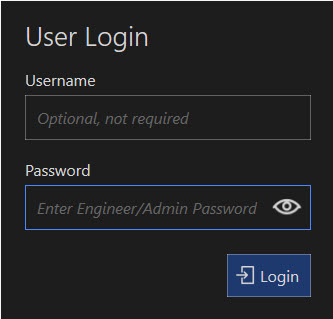
By clicking on the eye symbol, the password can be entered invisibly. To make the password visible, the user must delete and then re-enter the password.
| In the factory state, the user roles are deactivated and the Admin role is the standard user. When the user roles have been activated, a password is required for the Engineer and Admin roles. A user name is not required. |
Changing users
- Open the User Login.
- Enter the password.
- Confirm with [Login].
- The RemoteHMI menu will open.
Remote HMI Device Manager
The Remote HMI Device Manager is a supplement to the firmware. It is used for central parametrisation of the firmware and for licence management. Device Manager access must be granted in the firmware under the System & Proxy menu menu item. Once access has been granted, several Thin Clients can be configured and parameterised via templates with the same settings.
Also, the Device Manager can access the Thin Client via the Remote Access function. This remote access via VNC must be permitted under the System & Proxy menu menu item.
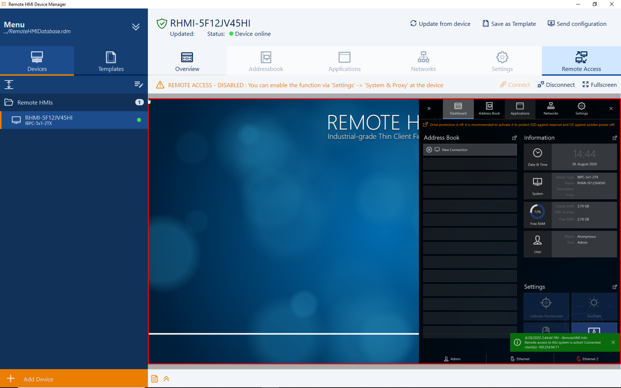
Remote HMI Device Manager accessing the firmware of an IBPC.
During parametrisation of the firmware, changed settings are not transferred 'live'. The local user can decline every change or postpone it to a different time.
Quick start
| Notes on first start-up The firmware starts with the Admin user role. User roles and password protection are not active. Once you have completed the configuration, activate the user roles. |
You have the following options for opening the dashboard:
- via the F8 Menu
- by pressing the [F8/Fn] / [P2] function key
- by pressing of the keyboard icon for a couple of seconds
The [F8] function key can be changed in the User Interface menu.
Opening the dashboard
- On the start screen, open the Remote HMI menu.
- Navigate via
 directly to the address book.
 - Or use the double arrow to open the expanded dashboard.
Set-up of the network adapter
As a factory setting, the automatic address allocation Auto config via DHCP is activated.
Automatic set-up of the network address
- Open the Networks register.
- Check whether Auto config via DHCP is activated.
- Click on Applyto start the automatic allocation by the DHCP server.
- IP address, gateway and subnet mask are configured.
Manual set-up of network address
- Open the Networks register.
- Deactivate Auto config via DHCP to set up the address manually.
- Enter the IP address of the network adapter in the Local IP address field.
- Enter the subnet mask in the Subnet Mask field.
- If you want the Thin Client to access a different network, enter the IP address of the gateway under Gateway.
- Click on Apply to accept the changes.
- IP address, gateway and subnet mask are configured.
Automatic configuration of the DNS server
- Open the Networks register.
- Activate Auto DNS Server Addresses to activate the automatic address allocation.
- Click on Applyto accept the settings.
- The IP addresses of the DNS servers that were found are registered.
Manual configuration of the DNS server
- Open the Networks register.
- Enter the IP address of the first DNS server in the Primary DNS Server field.
- Enter the IP address of the second DNS server in the Secondary DNS Server field.
- Click on Apply to accept the settings.
Set-up of remote connections
Setting up remote connections
Automatic logon at the server
The automatic logon at the server can be configured in the settings of the remote connection. For this you need the user ID and the password for the server.
| Only users with authority for remote access to the server can log on to the server. Check the user authority at the server or the KVM box. |
Display position of the remote connection
The following display options are available:
| Symbol | Designation | Meaning |
|---|---|---|
| Full display | shows the full screen |
| Left display half | Scales the remote screen content and displays it on the left hand side |
| Right display half | Scales the remote screen content and displays it on the right hand side |
| Upper display half | Scales the remote screen content and displays it at the top half. |
| Lower display half | Scales the remote screen content and displays it at the bottom half. |
| Bottom left corner | Scales the remote screen content and displays it in the bottom left corner. |
| Bottom right corner | Scales the remote screen content and displays it in the bottom right corner. |
| Top left corner | Scales the remote screen content and displays it in the top left corner. |
| Top right corner | Scales the remote screen content and displays it in the top right corner. |
| Picture in picture | Scales the screen content of a camera and displays it always in the foreground at a free position. This option is only available for camera images. |


Behaviour of firmware when connection is lost
You can configure how the remote connection behaves during a system startup or when it is lost, as follows:
| Auto connect on system startup |
| Automatically establishes a connection during system startup, is represented by the  symbol in the address book entry symbol in the address book entry |
| During a system startup the dial-up must be started manually | |
| Auto reconnect on connection loss |
| Automatically reconnects after the connection has been lost. Is represented by the
|
| After the connection has been lost, the dial-up must be started automatically |
For Pro licence users
| The system allows parallel use of several active remote connections (multi-session connections). Whilst one remote connection is displayed on the screen, the other connection stays active in the background. These connections are marked as follows in the address book:
|
Activate the parallel use of several remote connections in the Settings menu under Connections . See also:
Set-up of RDP connections
You will need the IP address or the name of the server for the configuration. These are stored in the system properties of the server.
| For RDP connections, remote access must be explicitly permitted in the server's system properties. The remote access must be configured for the user. |
- Open the Address Book register.
- Click on + Add.
A new address book entry is created. - Click on Edit.
- In the Connection Settings select "RDP" from the Type drop-down field.
- Enter the name of the connection in the Name field.
- Enter the IP address or name of the server in the Server Address field.
- NOTE:
To ensure automatic access to the connected server you have to enter the correct logon data. Please note that a domain name may have to be used together with the user name.
- NOTE:
- Enter the login data of the server in the User Name and Password fields.
- If you want to be able to call up the remote connection via the keyboard, use Hotkey to specify a hotkey.
- Go to Show on to select the display option.
- Specify the minimum user role required for the manual set-up of the connection.
- NOTE:
If a user does not have the required authority to set up the connection, this connection is greyed out in the address book.
- NOTE:
- Click on Apply to set up the connection.
- The connection is shown in the address book.
Set-up of the VNC connection
A VNC client is pre-installed on the Thin Client. The VNC service must also be installed on the server.
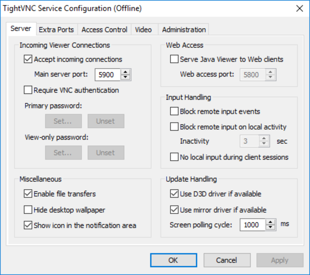
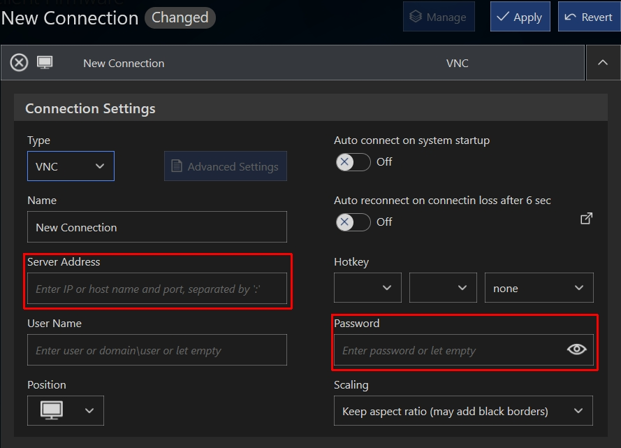
To set up the connection you require the IP address of the VNC server and, depending on the configuration, the VNC password.
Preparation of host for VNC connection
The process varies according to which VNC service is used. For more information, please refer to the documentation provided by the VNC service manufacturer.
NOTICE This process requires Administrator authorisation. |
- Make sure that the Thin Client can contact the host. If both are part of the same network, this will be the case.
- Make sure the VNC service is installed and activated on the host (see Activating VNC server system on the host).
- If the network connection is protected via a firewall you need to configure this firewall. Permit network communication via the port where the VNC service is ready to receive (5900 as a standard).
- If the network connection is protected via a router, you need to configure this router. For the transfer of network communication, specify every configured port where the VNC service is ready to receive (5900 as a standard).
- Check whether the VNC service is working properly and whether it accepts incoming connections.
- The host is ready.
Preparation of Thin Client
The process varies according to which VNC service is used. For more information, please refer to the documentation provided by the VNC service manufacturer.
NOTICE This process requires Administrator authorisation. |
- Make sure that the Thin Client can contact the host. If both are part of the same network, this will be the case.
- If the VNC connection of the Thin Client is protected via a proxy server you have to specify the proxy server in the VNC viewer.
- The Thin Client is ready.
Set-up of the Thin Client
| If the port number of the VNC server is different from the standard port, the IP address needs to be extended to include the port number, for example: 192.168.1.23:5901 |
- Open the Address Book.
- Click on +Add.
A new address book entry is created. - Click on Edit.
- In the Connection Settings select "VNC" from the Type drop-down field.
- Enter the name of the connection in the Name field.
- Enter the IP address of the server in the Server Address field.
- NOTE:
To ensure automatic access to the connected server you have to enter the correct logon data.
- NOTE:
- Enter the logon data of the server.
- If you want to be able to call up the remote connection via the keyboard, use Hotkey to specify a hotkey.
- Go to Show on to select the display option.
- Specify the minimum user role required for the manual set-up of the connection.
- NOTE:
If a user does not have the required authority to set up the connection, this connection is greyed out in the address book.
- NOTE:
- Click on Apply to set up the connection.
- The connection is shown in the address book.
Set-up of KVM-over-IP connection
To establish a connection you require a VNC server service which runs on the KVM box.
To set up the connection you require the IP address of the VNC server and, depending on the configuration, the VNC password.
- Open the Address Book.
- Click on +Add.
A new address book entry is created. - Open the address book entry.
- In the Connection Settings select "KVM" from the Type drop-down field.
- Enter the name of the connection in the Name field.
- Enter the IP address of the KVM box in the Server Address field.
Device type Default IP address Username Password Digital Ipeps 192.168.1.42 admin no password " " Digital Ipeps+ 192.168.1.42 admin no password " " Infinity Dual 2112T 192.168.1.42 admin no password " " 5x6 Digital 192.168.1.22 admin top secret - Enter the login data of the KVM box in the User Name and Password fields.
- If you want to be able to call up the remote connection via the keyboard, use Hotkey to specify a hotkey.
- Go to Show on to select the display option.
- Specify the minimum user role required for the manual set-up of the connection.
- NOTE:
If a user does not have the required authority to set up the connection, this connection is greyed out in the address book.
- NOTE:
- Click on Apply to set up the connection.
- The connection is shown in the address book.
Setting up a camera connection
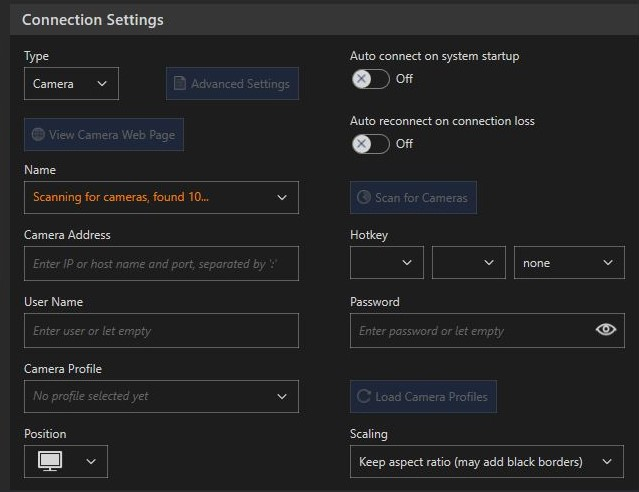
The image displays a connection settings page for the remote HMI software. The following options are available
- Name: This tab allows users to assign a specific name to the camera for easy identification within the software.
- Camera Address: This tab allows users to enter the IP address, URL or port of the camera. This is necessayr for establishing a connection.
- Username: This tab is for entering the username required to access camera, enhancing security.
- Camera Profile: Users can select or define a camera profile, which may include settings related to resolution, frame rate, or specific features of the camera.
- Position: This tab allows users to set the physical position or orientation of the camera, which can be important for monitoring specific areas.
- Hotkey: Users can configure a hotkey for quick access to the camera feed or specific functions, improving efficiency during use.
- Password: This tab is for entering the password associated with the camera, ensuring that only authorized users can access the stream.
- Scaling: This tab allows users to adjust the scaling settings for the camera feed, ensuring that the image displays correctly within the HMI interface.
Opening the web browser in kiosk mode
.jpg)
This option can be used to open the web browser in kiosk mode. By entering an internet address, a browser window will pop up across the entire screen. The connection can be established by entering the connection name or the URL. Only one connection can be used at a time.
Test of remote connection
You can test the remote connection in the address book.
Starting a remote connection
- Close the settings window of the remote connection.
- In the list, click on the remote connection you want to test.
- If you have configured a hotkey, check whether the remote connection also starts via the hotkey.
Once a connection has been established, the symbol changes to .
.
Remote connection does not start
If no connection has been established, the symbol changes to  . The system will issue an error message.
- Check whether the settings are correct.
If the host is available, try to narrow down the source of the problem with the following checks:
Check RDP connection
- Check in the server's system settings whether a RDP connection is permitted.
- Check whether the Thin Client is listed at the server as a user with the necessary access authorisation.
Check VNC connection
- Check whether the VNC service is configured correctly.
- Check whether the port number has been entered correctly.
Check KVM-over-IP connection
- Check the configuration of the KVM box.
- Check whether the port number has been entered correctly.
Activating user roles
Activating user roles
- Open the Access Controlmenu.
- Activate the 3-tier access management under Main .
- Activate Limit Operator access to Dashboard to hide the dashboard's register bar from the operator.
Operators can only see the dashboard data. - Enter the passwords for the "Engineer" and "Admin" user roles in the Login Passwords. fields.
- Repeat the passwords. If the passwords are incorrect, the system will issue an error message.
- Click on Apply to accept the settings.
- Users with roles "Engineer" and "Admin" have to logon with their passwords.
Further configuration options
Protection
Use this menu to activate the firewall, the virus protection and the UWF filter and to block the use of USB devices. See also:
- Activating firewall and virus protection
- Activating write protection for the SSD.
- Activating the USB lockdown
- Configuration of system behaviour during restart
Display
Use this menu to adjust the display on the screen or to activate a screen saver. See also:
- Adjusting display settings
- Adjusting multi-display settingswhen two displays are connected to the Thin Client.
For Pro licence users
To enable users to access the applications on the Thin Client, you have to install the applications and add a link in the Applications register. See also:
First steps for the operator
Start menu
The system will start with the following screen.
Opening the dashboard
- On the start screen, click on the F8 Menu and press the [F8/Fn] / [P2] function key or keep the keyboard icon pressed for several seconds.
The minimised dashboard will pop up.
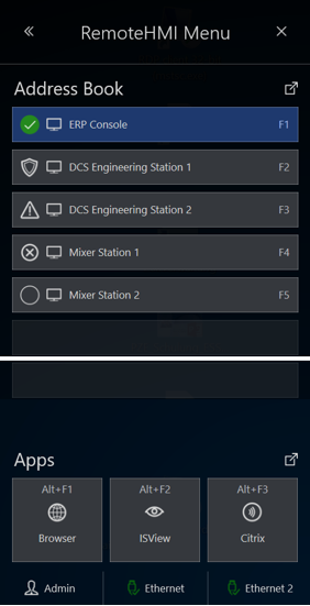
Navigation elements
| opens the expanded dashboard |
| minimises the dashboard |
| navigates to register or menu |
Using the virtual keyboard
- Touch the keyboard icon to open the keyboard.
When the configuration menu is active, the keyboard icon is located above the menu bar.
If a remote connection is active, the keyboard icon is located at the top right edge of the screen.

Moving the virtual keyboard icon
- Move the cursor to the keyboard icon.
- With the left mouse key, click on the keyboard icon and hold for a few seconds until the cursor changes to the symbol for object moving.

The keyboard icon in "object moving" mode
- Move the keyboard icon to the desired position.
- The keyboard position is saved. When the remote connection is next started up, the keyboard will be positioned there.
Editing keyboard properties
- Touch the keyboard icon to open the keyboard.
- Tap on the
 key.
key.
The keyboard settings will pop up. You have the following options:
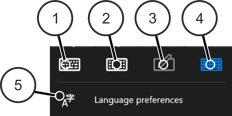
| 1 | Displays keyboard without control keys |
| 2 | Displays keyboard for cursor control and positioning, as well as special keys |
| 3 | Opens handwriting recognition |
| 4 | Displays keyboard with all control keys |
| 5 | Opens keyboard language settings |
| Use the Windows key in combination with another key to use a function of the Windows operating system. A double-click of the Windows key will open the start menu. |
Using the Shift, Ctrl, Alt und Windows control keys
- First tap on the control key.
The key changes colour. - Tap on the next key of the key combination.
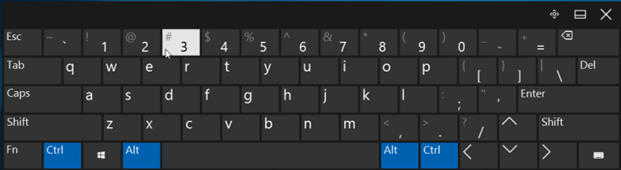
- Once the key combination is complete, the function is executed and the colour changes back.
Using the Caps Lock key (Caps)
- First tap on the Caps Lock key.
The key changes colour and stays that way. - Tap on the next key of the key combination.
- Tap on the Caps Lock key again to deactivate it.
- The colour of the key reverts to its original.
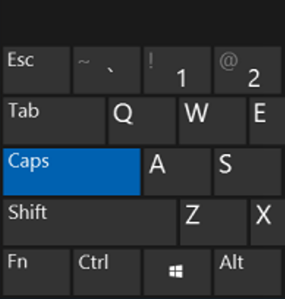 Activated Caps Lock key | 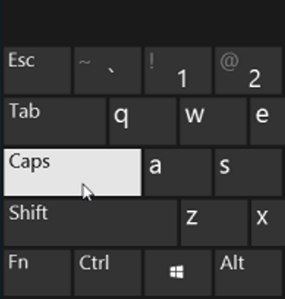 Deactivated Caps Lock key. |
Starting a remote connection
Remote connections can be selected from the address book.
Status of the remote connection
| Symbol | Meaning |
|---|---|
| connected |
| not connected |
| connection not possible |
| Default, will be connected automatically during start-up |
| connected, parallel remote connection, active in the background (multi-session connections require a Pro licence) |
| Auto-Reconnect |
Starting / changing a remote connection
- In the Dashboard click on the remote connection you want to activate.
- If a hotkey or a function key has been specified in the Address Book you can also start the remote connection via the keyboard.
Once a connection has been established, the symbol changes to. The remote connection that was previously active will be deactivated.
| If an input window pops up requesting user name and password you need to enter both to be able to access the server. Contact your network administrator for the user name and password. |
| If the parallel use of several remote connections has been activated you can switch between the connected PCs. Both connections remain active. |
Using multiple remote connections simultaneously
| Requires a Pro licence. |
- In the Dashboard click on the remote connection which you also want to activate.
- If a hotkey or a function key has been specified in the Address Book you can also start the remote connection via the keyboard.
Once the connection to the other PC has been established, the connections are displayed as follows: connection active in the foreground connection active in the background
- Click on the connection you want in order to change the display.
- Both connections remain active.
Remote connection does not start
If no connection has been established, the symbol changes to . The system will issue an error message. Make a note of its contents as they will be needed to fix the problem.
- Get in touch with an Admin or an Engineer to have the problem fixed.
- Inform them of the contents of the error message.
Using the dashboard settings
| Button to start touchscreen calibration. If two touchscreens are connected you can calibrate them separately. |
| Button to adjust the display backlight. |
| Button to deactivate the display touch function for 30 seconds Buttons can then not be inadvertently activated during cleaning. |
| Button to simulate a right mouse click on the touchscreen, for example to call up the context menu of applications. |
| Use this button to establish a network connection via a wireless router. |
Calibrate the touchscreen
The touchscreen is calibrated via specific calibration points (top left, centre left, bottom left, top centre, centre centre, bottom centre, top right, centre right, bottom right). These are shown one after the other during calibration.
Calibrating a touchscreen
- Tap on Calibrate Touchscreen to start the calibration process.
The display becomes monochrome and the first calibration point pops up.
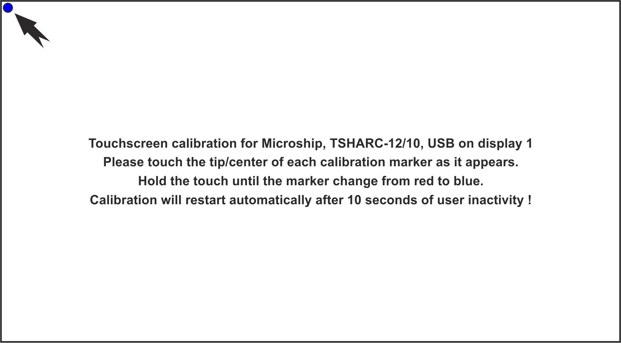
- Tap on this calibration point and keep it pressed until its colour turns from blue to red and back to blue again (visual feedback).
The next calibration point pops up. - Repeat step one for every calibration point. Make sure you hit the points exactly.
After the last calibration point has been dealt with, the following message will pop up:
Please touch the button above to confirm correct calibration.
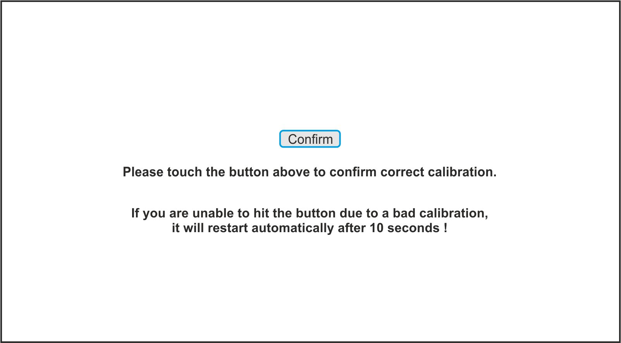
- Confirm the calibration by tapping on Confirm.
- Once the touchscreen has been calibrated, the display returns to the RemoteHMI menu.
| If the calibration has not been performed correctly it cannot be confirmed. The calibration process will re-start automatically after 10 seconds. |
If two touchscreens are connected, the button is split. You can calibrate each touchscreen separately.
- The left hand side of the Calibrate Touchscreen 1 button starts the calibration of the first touchscreen.
- The right hand side of the Calibrate Touchscreen 2 button starts the calibration of the second touchscreen.
Adjusting display brightness
| To increase the service life of the backlight we recommend you activate the Backlight Auto Dimming function (see Display settings). |
- Tap on +to increase display brightness.
- Tap on -to reduce display brightness.
Opening the context menu at the touchscreen
Tapping on the touchscreen simulates a click with the left mouse key. If you want to open the context menu of applications you have to simulate a right mouse key click.
|
|
| Right mouse click deactivated | Right mouse click activated |

Calling up the context menu of an application
- Tap on Touchscreen Rightclick to activate the functions of the right mouse key.
- Place your finger or pen on the position where you want to click with the right mouse key. A circle appears around the point of touch.
- Keep your finger or pen on the screen until the circle is complete.
- Remove your finger or pen once the circle is closed.
- The context menu pops up.
If no context menu pops up, no context menu is available for the position you clicked on.
If you remove your finger or pen before the circle has closed the right mouse key click is aborted.
Cleaning the touchscreen
- Tap on Clean Display to deactivate the touch functions for 30 seconds.
- Clean the touchscreen.
Starting applications
| Requires a Pro licence. |
Applications can only be used with a firmware Pro licence.
Once applications (apps) have been set up, they are shown as buttons. More than one app can be started. The status of the app is shown.
| Indicator | Meaning |
|---|---|
| inactive app |
| active app |
| app running in the background |
Using an app
- In the Dashboard click on the app you want to use.
- If a hotkey or function key has been allocated to the button you can also start the app via the keyboard.
- The app is started.
| If you lack the required access authority for the app, contact your administrator. |
Accessing information on the status of the Ethernet connection
Accessing information on the status of the Ethernet connection
- Open the Dashboard.
- In the bar at the bottom, click on the button for the Ethernet connection.

The status information will be displayed. - Alternatively, use
 to open the expanded dashboard.
All system information will be displayed on the right hand side.
Using the multi-display mode
If two displays are connected to the Thin Client, the following types of display are possible:
- Both displays show the same content.
- The two displays show different content. What is shown on the main display is expanded by the second display.
Address book
The Address Book register can be used to call up or manage configured remote connections or create new remote connections.
Address book options
The Address Book register lists all configured remote connections.
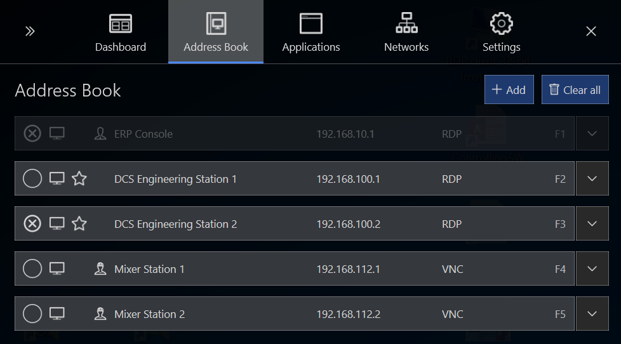
| If a connection in the address book is greyed out, the user's authority level is too low to access it. |
| The simultaneous use of multiple remote connections (multi-session connection) requires the Pro licence and must be activated in the Connections menu. |
If the parallel use of several remote connections has been activated, the connections will be displayed as follows:
Status of the remote connection
| Symbol | Meaning |
|---|---|
| connected |
| not connected |
| connection not possible |
| Default, will be connected automatically during start-up |
| connected, parallel remote connection, active in the background (multi-session connections require a Pro licence) |
| Auto-Reconnect |
Navigation elements
| opens an item in the list |
| closes an item in the list |
Address book functions
Which edit functions or buttons are available depends on the sub-menu.
| Add | Adds a new entry. |
| Clear all | Deletes all entries in the list |
| Edit | Opens the highlighted entry for editing |
| Copy | Copies the highlighted entry and opens the copy for editing |
| Delete | Deletes the highlighted entry |
| Manage | Navigates back to the list level |
| Apply | Applies input |
| Undo | Discards input |
| Up | Moves the highlighted entry one place up in the list |
| Downwards | Moves the highlighted entry one place down in the list |
| Edit profile | Opens the dialogue for editing the remote profile |


Hotkey for calling up remote connections
You can call up the remote connection via the keyboard if you have specified a hotkey under the Hotkey menu item. Three keys can be used.
| First key | Second key | Third key |
|---|---|---|
| [Shift] | [Ctrl] | none |
| [Ctrl] | [Alt] | [F1] ... [F12] |
The Ctrl key must not be selected twice.
Setting up remote connections
Automatic logon at the server
The automatic logon at the server can be configured in the settings of the remote connection. For this you need the user ID and the password for the server.
| Only users with authority for remote access to the server can log on to the server. Check the user authority at the server or the KVM box. |
Display position of the remote connection
The following display options are available:
| Symbol | Designation | Meaning |
|---|---|---|
| Full display | shows the full screen |
| Left display half | Scales the remote screen content and displays it on the left hand side |
| Right display half | Scales the remote screen content and displays it on the right hand side |
| Upper display half | Scales the remote screen content and displays it at the top half. |
| Lower display half | Scales the remote screen content and displays it at the bottom half. |
| Bottom left corner | Scales the remote screen content and displays it in the bottom left corner. |
| Bottom right corner | Scales the remote screen content and displays it in the bottom right corner. |
| Top left corner | Scales the remote screen content and displays it in the top left corner. |
| Top right corner | Scales the remote screen content and displays it in the top right corner. |
| Picture in picture | Scales the screen content of a camera and displays it always in the foreground at a free position. This option is only available for camera images. |
Behaviour of firmware when connection is lost
You can configure how the remote connection behaves during a system startup or when it is lost, as follows:
| Auto connect on system startup |
| Automatically establishes a connection during system startup, is represented by the symbol in the address book entry |
| During a system startup the dial-up must be started manually | |
| Auto reconnect on connection loss |
| Automatically reconnects after the connection has been lost. Is represented by the
|
| After the connection has been lost, the dial-up must be started automatically |
For Pro licence users
| The system allows parallel use of several active remote connections (multi-session connections). Whilst one remote connection is displayed on the screen, the other connection stays active in the background. These connections are marked as follows in the address book:
|
Activate the parallel use of several remote connections in the Settings menu, under Connections . See also:
Set-up of RDP connections
You will need the IP address or the name of the server for the configuration. These are stored in the system properties of the server.
| For RDP connections, remote access must be explicitly permitted in the server's system properties. The remote access must be configured for the user. |
- Open the Address Book register.
- Click on + Add.
A new address book entry is created. - Click on Edit.
- In the Connection Settings select "RDP" from the Type drop-down field.
- Enter the name of the connection in the Name field.
- Enter the IP address of the server in the Server Address field.
- NOTE:
To ensure automatic access to the connected server you have to enter the correct logon data. Please note that a domain name may have to be used together with the user name.
- NOTE:
- Enter the login data of the server in the User Name and Password fields.
- If you want to be able to call up the remote connection via the keyboard, use Hotkey to specify a hotkey.
- Go to Show on to select the display option.
- Specify the minimum user role required for the manual set-up of the connection.
- NOTE:
If a user does not have the required authority to set up the connection, this connection is greyed out in the address book.
- NOTE:
- Click on Apply to set up the connection.
- The connection is shown in the address book.
Set-up of the VNC connection
A VNC client is pre-installed on the Thin Client. The VNC service must also be installed on the server. Administrator authority is required on the host PC and the server for the installation.
To set up the connection you require the IP address of the VNC server and, depending on the configuration, the VNC password.
| If the port number of the VNC server is different from the standard port, the IP address needs to be extended to include the port number, for example: 192.168.1.23:5901 |
- Open the Address Book register.
- Click on +Add.
A new address book entry is created. - Click on Edit.
- In the Connection Settings select "VNC" from the Type drop-down field.
- Enter the name of the connection in the Name field.
- Enter the IP address of the server in the Server Address field.
- NOTE:
To ensure automatic access to the connected server you have to enter the correct logon data.
- NOTE:
- Enter the logon data of the server.
- If you want to be able to call up the remote connection via the keyboard, use Hotkey to specify a hotkey.
- Go to Show on to select the display option.
- Specify the minimum user role required for the manual set-up of the connection.
- NOTE:
If a user does not have the required authority to set up the connection, this connection is greyed out in the address book.
- NOTE:
- Click on Apply to set up the connection.
- The connection is shown in the address book.
Preparation of host for VNC connection
The process varies according to which VNC service is used. For more information, please refer to the documentation provided by the VNC service manufacturer.
NOTICE This process requires Administrator authorisation. |
- Make sure that the Thin Client can contact the host. If both are part of the same network, this will be the case.
- Make sure the VNC service is installed and activated on the host (see Activating VNC server system on the host).
- If the network connection is protected via a firewall you need to configure this firewall. Permit network communication via the port where the VNC service is ready to receive (5900 as a standard).
- If the network connection is protected via a router, you need to configure this router. For the transfer of network communication, specify every configured port where the VNC service is ready to receive (5900 as a standard).
- Check whether the VNC service is working properly and whether it accepts incoming connections.
- The host is ready.
Preparation of Thin Client for the VNC connection
The process varies according to which VNC service is used. For more information, please refer to the documentation provided by the VNC service manufacturer.
NOTICE This process requires Administrator authorisation. |
- Make sure that the Thin Client can contact the host. If both are part of the same network, this will be the case.
- If the VNC connection of the Thin Client is protected via a proxy server you have to specify the proxy server in the VNC viewer.
- The Thin Client is ready.
Test of remote connection
Remote connection does not start
If no connection has been established, the symbol changes to . The system will issue an error message.
- Check whether the settings are correct.
If the host is available, try to narrow down the source of the problem with the following checks:
Check RDP connection
- Check in the server's system settings whether a RDP connection is permitted.
- Check whether the Thin Client is listed at the server as a user with the necessary access authorisation.
Check VNC connection
- Check whether the VNC service is configured correctly.
- Check whether the port number has been entered correctly.
Check KVM-over-IP connection
- Check the configuration of the KVM box.
- Check whether the port number has been entered correctly.
Managing remote connections
Navigation elements
| opens an item in the list |
| closes an item in the list |
| In order to edit the settings, the connection must be inactive. |
Moving connections in the list
- Open the entry in the Address Book register with
 .
. - Click on ↑ to move the entry up one place in the list.
- Click on ↓ to move the entry down one place in the list.
- The connection is moved in the list.
Editing connection settings
- Deactivate the connection in the Address Book register.
- Open the entry.
- Click on Edit to edit the settings.
- Change the settings as required.
- Click on Apply to accept the changes.
Click on Revert to discard the changes. - Click on Manage to edit the list.
Click on [ ] to close the entry and return to the list.
Deleting a connection
- Deactivate the connection in the Address Book.
- Open the connection.
- Click on Delete to delete the connection.
- Confirm the security message.
- The connection is deleted.
Copying a connection
- Deactivate the connection in the Address Book register.
- Open the entry.
- Click on Copy to copy the settings.
A new entry is created. - Open the entry and edit the settings as required.
- Click on Apply to accept the changes.
Click on Revert to discard the changes. - Click on Manage to edit the list.
Click on [] to close the entry and return to the list.
App management
| Requires a Pro licence. |
The Applications register can be used to add and manage links to Windows tools and applications, virus protection software or EXE applications such as the Citrix Receiver. You can configure the display and behaviour of an app with various settings, and manage access via the user roles.
Before you can add an app you need to install it on the Thin Client. The Thin Client has to meet the system requirements of the app.
Options in the Applications register
The Applications register lists all available apps.
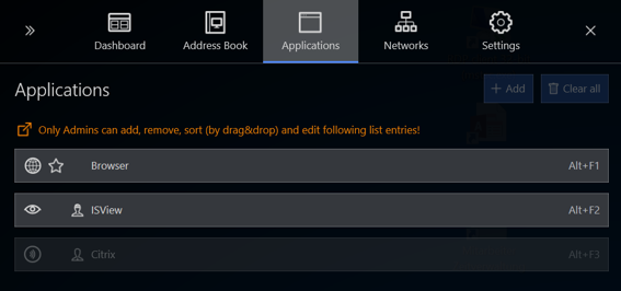
| If a user does not have the required authority to use the app, this app is greyed out in the list. |
Symbols in the list of apps
You can freely chose the icons representing the apps in the list. In the interest of user-friendliness we recommend you use commonly used symbols.
| Symbols |
|---|
A selection of icons standing for different types of app. |
Engineer, Admin: Defines who is authorised to start the app. |
Default, will be connected automatically during start-up |


Functions in the Applications register
Which edit functions or buttons are available depends on the sub-menu.
| Add | Adds a new entry. |
| Clear all | Deletes all entries in the list |
| Edit | Opens the highlighted entry for editing |
| Copy | Copies the highlighted entry and opens the copy for editing |
| Delete | Deletes the highlighted entry |
| Manage | Navigates back to the list level |
| Apply | Applies input |
| Undo | Discards input |
| Up | Moves the highlighted entry one place up in the list |
| Downwards | Moves the highlighted entry one place down in the list |
| Terminate | Forces the shut-down of an open application with possible loss of data |
| Select file | Opens the selection window for executable files |


Navigation elements
| opens an item in the list |
| closes an item in the list |
Hotkey for starting applications
An application can be selected via the keyboard if a hotkey has been created under the Hotkey menu item. Three keys can be used.
| First key | Second key | Third key |
|---|---|---|
| [Shift] | [Ctrl] | none |
| [Ctrl] | [Alt] | [F1] ... [F12] |
The Ctrl key must not be selected twice.
| Each hotkey can only be allocated once. |
Command line parameters
You can define a command line parameter for each app that allocate application-specific parameters.
Example:
The parameter entry -k www.stahl.de in the browser opens the www.stahl.de website in the kiosk mode.
| Please refer to the description of each application for information on permitted command line parameters. |
Application privilege level
| Level | Meaning |
|---|---|
| Run as standard user | Starts the application with standard user authority |
| Run as administrator user | Starts the application with Administrator authority You can define name and password for the Admin account in the System & Proxy menu menu. |
| Run elevated | Starts the application with extended Administrator authority You can define name and password for the Admin account in the System & Proxy menu menu. |
Adding apps
| Requires a Pro licence. |
NOTICE Compatibility with third-party software The firmware is qualified for software that is included in the delivery of the supported HMI devices. R. STAHL HMI Systems GmbH does not accept any liability for the functionality of third-party software. Before installing software of other providers make sure it is compatible. |
Checking system requirements and operability of the application
- Make sure that the application is compatible.
- Check whether the system requirements are met.
- Check wether the application can be installed on the Thin Client. This is done in the Admin role.
- Check whether the application works smoothly.
- If all conditions have been met, the application is compatible and operable.
Adding an app
- Open the Applications register.
- Click on +Add.
A new entry is created. - Open the entry.
- Go to Icon and select a suitable symbol from the drop-down field.
- Activate Autostart if you want the application to start automatically.
- Enter the name of the application in the Name field.
- If you want to be able to call up the remote connection via the keyboard, use Hotkey to specify a hotkey.
- Enter the file name in the Path field or use the Select File button to open the Windows Explorer to find the program. Select the program file and confirm the dialogue by clicking on Open.
- If you want to define application-specific parameters, click on Parameters to enter a command line parameter. For information on possible parameters please refer to the manual of the application.
- Click on Application privilege level to specify how the application should be started.
- Activate Close RemoteHMI menu on app start if you wish to close the firmware when starting the application.
- NOTE:
If the application requires Administrator or extended authority, you can store the login data for the Administrator account under Use predefined admin login credentials You then no longer need to enter the login data when starting the app.
- NOTE:
- Activate Use predefined admin login credentials if you want to start the application via the login data of the Thin Client. Enter the user name and the password.
- Click on Min user role required to start app manually to define the lowest required user authority level for starting the application.
- NOTE:
If the user is not authorised to start the application manually, it will be greyed out in the Applications register.
- NOTE:
- Click on Apply to accept the input.
The application will be displayed on the dashboard and in the Applications register. - Click on Manage to move the app in the list.
Click on [] to close the entry and return to the list. - Check whether the app opens correctly when clicking on the entry.
Managing apps
Navigation elements
| opens an item in the list |
| closes an item in the list |
Moving an application in the list
- Open the entry you want in the Applications register by clicking on [].
- Click on ↑ to move the entry up one place in the list.
- Click on ↓ to move the entry down one place in the list.
Changing application settings
- Open the entry you want in the Applications register.
- Click on Edit to edit the settings.
- Make the required changes.
- Click on Apply to accept the changes.
Click on Revert to discard the changes. - Click on Manage to edit the list.
Copying an application
- Check the compatibility and ability to run of the application before creating a link to a new application (see Adding apps).
- Open the Applications menu.
- Open the entry you want to copy.
- Click on Copy to copy the application's settings.
A new entry is created. - Click on Select File and select the program in Windows Explorer.
- Open the entry and change its settings as described under "Adding apps".
- Click on Apply to apply the changes.
Click on Revert to discard the changes. - Click on Manage to move the app in the list.
Click on [] to close the entry and return to the list.
Closing an application
| In general, you should shut down applications properly to prevent any data loss. If you cannot shut down an application in the normal way you can force its termination. |
- Open the entry you want in the Applications register.
- Click on Terminate to force the termination of the application.
- Confirm the security message.
- The application is shut down.
Deleting the link to the application
| The Delete button only deletes the link to the application and does not de-install the application. |
- Open the entry you want in the Applications register.
- Click on Delete to delete the link.
- Confirm the security message.
- The link to the app is deleted.
Network
The Networks register can be used to configure the Thin Client for incorporation in the network.
The number and designation of available Ethernet adapters depend on the Thin Client's hardware.
Options in the Networks register
NOTICE Requires IT network expertise Settings on the Windows network level can have an impact on the entire network. Only click on the Advanced button if you know your way around Windows network settings. If not, ask your network administrator for help. |
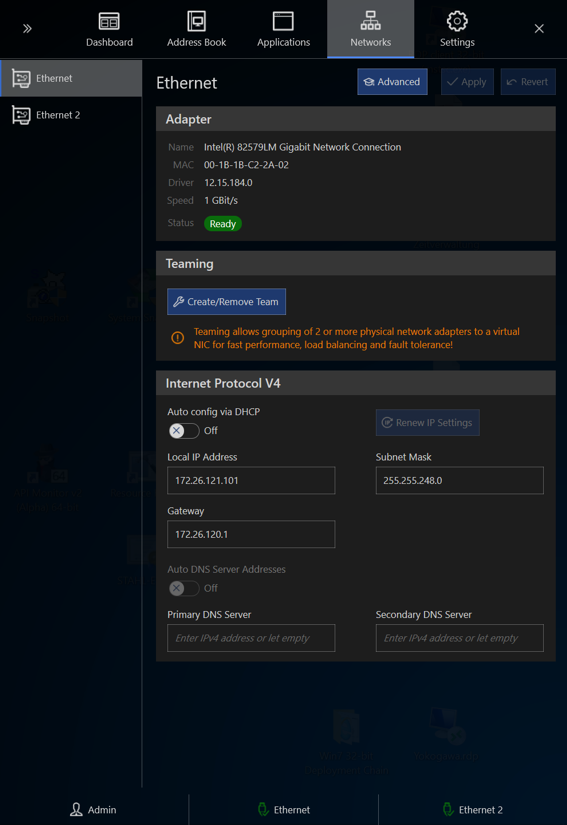
Buttons in the Networks register
| Advanced functions | Opens the Windows network settings |
| Apply | Applies input |
| Undo | Discards input |
| Create/remove team | Opens the teaming function dialogue |
| Renew IP settings | Requests renewed IP configuration from the DHCP server |


Adapter information
The Adaptor section lists information on the chosen Ethernet adapter.
| Name | Name of the Ethernet adapter |
| MAC | MAC address of the Ethernet adapter |
| Driver | Version of the adapter driver |
| Speed | Speed of the Ethernet connection |
| Status | Status of Ethernet connection |
About DHCP
Dynamic Host Configuration Protocol - DHCP
Address allocation with DHCP works according to the client-server principle. The client requests the IP address configuration from a DHCP server which looks up the requested data in its database.
The DHCP server can allocate the following settings to the Thin Client:
- IP address
- Sub-net mask
- Standard gateway
- DNS server address
Auto config via DHCP
In the case of automatic allocation, the client sends its address request to all network participants. The DHCP server responds with a data package that contains, in addition to a possible free IP address and the client's MAC address, the sub-net mask and the IP address and ID of the server. The client takes the required data from the response and informs the DHCP server. The server confirms the TCP/IP parameters and sends additional information such as the DNS server back to the client. The DHCP server stores the automatically allocated address together with the MAC address in the database. This allocation is permanent.
Further reading:
About DNS
Domain Name System - DNS
DNS is a service that converts domain names into numeric addresses. The basis of the DNS is a system of directories which manages the domain name space. When a new domain is created on the internet for example, a DNS server will store the domain name and the associated IP address. It will use this database to respond to any incoming queries concerning the domain name space.
Two DNS servers can be addressed with the firmware.
Auto DNS Server Addresses
Use this function to automatically address a DNS server, for example if the IP address of the DNS server is not known.
Further reading:
Set-up of the network adapter
As a factory setting, the automatic address allocation Auto config via DHCP is activated.
Automatic set-up of the network address
- Open the Networks register.
- Check whether Auto config via DHCP is activated.
- Click on Applyto start the automatic allocation by the DHCP server.
- IP address, gateway and subnet mask are configured.
Manual set-up of network address
- Open the Networks register.
- Deactivate Auto config via DHCP to set up the address manually.
- Enter the the IP address of the network adapter in the Local IP address field.
- Enter the subnet mask in the Subnet Mask field.
- If you want the Thin Client to access a different network, enter the IP address of the gateway under Gateway.
- Click on Apply to accept the changes.
- IP address, gateway and subnet mask are configured.
Manual configuration of the DNS server
- Open the Networks register.
- Enter the IP address fo the first DNS server in the Primary DNS Server field.
- Enter the IP address of the second DNS server in the Secondary DNS Server field.
- Click on Apply to accept the settings.
Teaming function
The teaming function allows you to
- use the Ethernet adapter in the team as stand-by adapters to create a redundancy and make the system more fail-safe.
- bundle the speed of the Ethernet adapters in order to increase performance.
The teaming function combines several physical network connections to create one virtual "Network Interface Controller" (NIC).
NOTICE "Teaming" function Teaming is an advanced function for the server environment. You can use Teaming to bundle many physical adapters into one team with functions for load sharing and increased reliability. |
NOTICE Requires IT network expertise This is set up at system level via the "Realtek - Ethernet Diagnostic Utility". Do not execute this function unless:
|
Creating a team
- Open the Networks register.
- Click on + Create/Remove Team.
The Teaming window will pop up, listing all necessary steps. - Wait until the "Realtek Diagnostic Utility" window opens. This may take up to 30 seconds.
- Highlight the required "PCle Controller" in the left section.
- Select "Teaming" in the central section.
- Select "Create Team" in the right section.
The "Create Team" window will pop up. - Enter a name for the team which will later appear in the list of Ethernet adapters.
- NOTE:
You can only activate one of the following functions:
"Fast/Giga EtherChannel"
"Link Aggregation / LACP"
- NOTE:
- Activate "Fast/Giga EtherChannel" to switch to the second adapter if the first one fails.
- Activate "Link Aggregation / LACP" to increase bandwidth by using both adapters simultaneously.
- Select the physical network adapters which you want to combine as a team.
- Confirm the selection with "OK".
The new virtual adapter is shown in the "Realtek Diagnostic Utility" window in the left section. - Highlight the team and check the settings in the right section.
- Close the "Realtek Diagnostic Utility" window.
- Return to the firmware and restart the system.
- The virtual adapter will be shown in the Networks register.
Remove Team
- Open the Networks register.
- Click on + Create/Remove Team.
The Teaming window will pop up, listing all necessary steps. - Wait until the "Realtek Diagnostic Utility" window opens. This may take up to 30 seconds.
- Highlight the virtual adapter in the left section.
- Open the context menu and select "Remove".
- Confirm the warning with "OK".
The virtual adapter is removed. - Return to the firmware and restart the system.
- The virtual adapter is removed from the Networks register.
Settings
The Settings register contains many functions with which the Engineer or Admin can configure the firmware.
Options in the Settings register
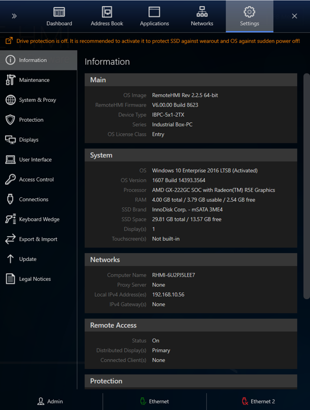
The Settings register contains the following menus:
| Menu | Contents | Authorised user |
|---|---|---|
| Information | Current system data, settings and configurations The menu contents vary depending on the device platform. | |
| Maintenance | Functions required for the maintenance of the Thin Client. Allows addition of third-party software and drivers. Activation of Pro licence and Windows LTSB | Admin |
| System & Proxy menu | Settings concerning device name (in the network) and proxy server | Engineer / Admin |
| Protection | Settings concerning system security | Engineer / Admin |
| Displays | Settings for up to 6 displays | Engineer / Admin |
| User Interface | Behaviour of RemoteHMI menu | Admin |
| Access Control | Setting up of protected user roles | Admin |
| Connections | Settings of connection options | Engineer / Admin |
| Keyboard Wedge | Setting up the COM interfaces for external scanners or readers | Engineer / Admin |
| Import & Export | Functions for the export and import of the device configuration | Engineer / Admin |
| Updates | Firmware updates | Admin |
| Legal Notice | Information on licence terms and conditions for the software used on the Thin Client |
Accept or discard settings
- Click on Apply to accept the settings.
- Click on Revert to discard the changes.
Display of system information
The Information menu lists the current system data, settings and configurations. The menu contents vary depending on the device platform.
| Menu | Contents |
|---|---|
| Main | Essential system information, OS image and firmware version |
| System. | Information on hardware and operating system This varies depending on the device type. |
| Network | Information on computer name and addresses of the proxy server, the device and the gateway |
| Remote Access | Information on the status of the remote connections |
| Protection | Up-to-date information on system security |
| Components | List of components |
| Serial Numbers | Serial numbers of the HMI, Electronic Boy and Display Box. |
Maintenance
The Maintenance menu can be used to carry out operations at the Windows system level.
- Change to Admin account of Windows user interface
- System restart
- System shutdown
- Settings reset
- Advanced Startup
- Pairing or adding a peripheral device
- Calling up the event log
- Activating the Pro Licence
- Activating Windows (via Internet or telephone)
Functions in the Maintenance menu
| Main | ||
| Maintain System | System maintenance | Permits log-in to the Administrator account via the regular Windows user interface |
| Restart System | System restart | Restarts the system |
| Shutdown System | System shutdown | Shuts down the system |
| Reset all Settings | Reset all settings | Reverts device to factory settings |
| Device | ||
| Add/Pair Device | Adding / pairing a device | Opens Windows system control to add peripheral devices or to pair Bluetooth devices with the Thin Client |
| Edit pointing device | Edit mouse | Opens the mouse system properties at the Thin Client |
| Event log | ||
| View Event Log | Open event log | Opens the event log Viewer of the Thin Client |
| Pro Edition License Activation | ||
| Activate Pro License | Activates Pro Licence | Activates Pro Licence online (requires Thin Client with internet access) |
| Apply Pro License | Applies Pro Licence | Activates single Pro Licence offline (requires PC/terminal device with internet access) |
| Windows Activation (only shown if Windows LTSB not activated) | ||
| Activate over Internet | Activate via internet | Activates Windows LTSB (requires Thin Client with internet access) |
| Activate by phone | Activate via phone | Opens telephone dialogue for activation of Windows LTSB |
Change to Admin account of Windows user interface
Enables you to perform system maintenance in the Administrator account and install applications on the Thin Client, for example.
NOTICE Requires IT network expertise Settings at system level may cause the device to malfunction. Only change to the system level if you are familiar with advanced settings. If not, ask your network administrator for help. |
- Open the Maintenance menu.
- In the Main window, click on Maintain System.
A safety check will pop up. - Confirm with Yes.
The system changes to the login window, allowing you to log in to the Administrator account of the regular Windows user interface. - Make the required system changes.
- Usually, a system restart is required to apply the changes.
System restart
- Open the Maintenance menu.
- In the Main window, click on Restart System.
A safety check will pop up. - Confirm with Yes.
- The system restarts.
System shutdown
Certain changes to the firmware require a Thin Client restart.
- Open the Maintenance menu.
- In the Main window, click on Shutdown System.
A safety check will pop up. - Confirm with Yes.
- The system shuts down.
Advanced Startup
"Advanced Startup" is a special menu containing additional options for error fixing and maintenance of the operating system. It features various tools and modes for troubleshooting, carrying out diagnostics or configuring the system. Below is a list of the main functions and options available with "Advanced Startup":
1. Access to advanced repair and restore options
- Restore system: restores system to a previous status without deleting personal data.
- Restore system image: restores system from a previous image (backup).
2. Troubleshooting
- Settings reset: use to reset Windows to factory settings, with optional retaining of personal data
- Input request: opens a command line for advanced diagnostics and repairs
- Start repair: fixes common problems that prevent the start of Windows
- Change start settings: lets you boot in secure mode or deactivate advanced driver options.
3. Boot options
- Show boot manager: choose between different installed operating systems
- Start from a different device: lets you boot from a CD/DVD, a USB stick or from the network.
4. Adjust driver and settings
- Deactivate driver signature check: useful for installing non-signature drivers
- Deactivate forced new starts in case of errors: lets you display bluescreen errors (BSOD).
5. UEFI/BIOS options
- UEFI firmware settings: allows access to BIOS / UEFI settings, for example to activate secure boot or change the boot sequence
Settings reset
You can reset the firmware settings to their factory state.
A reset means:
- Address book entries are deleted
- The application list is deleted
- Network configuration is reset to "automatic"
The following settings will not be reset:
- Keyboard layout
- Windows text and element size
- Computer Name
You can use the Export function to save the address book entries, the application list and network settings separately. Then use the Import function to restore the intact settings (see Import and Export).
NOTICE Requires IT network expertise Only carry out a reset if you are familiar with the configuration of the Thin Client. |
- Open the Maintenance menu.
- In the Main window, click on Reset all Settings.
A safety check will pop up. - Confirm with Yes.
- The system is reset to its factory state.
Pairing or adding a peripheral device
Use this dialogue to pair or add peripheral devices such as USB or Bluetooth devices.
- Open the Maintenance menu.
- Connect the new device to the Thin Client
- In the Device window, click on Add/Pair Device.
The system will change to the Control Panel/Hardware and Sound/Devices and Printers window. - Add a new device with Add a device .
- The system dialogue for adding a device will start.
- Choose the device type.
- Follow the instructions of the system dialogue.
- The device is ready to be used once the device drivers have been installed and the device has been configured.
- Test whether the device is working properly.
Calling up the event log
Opening the event log
- Open the Maintenance menu.
- In the Event log window, click on View Event Log.
The system will change to the "Event Viewer" at the system level.
| It may take a while for all of the recent events to be listed. Wait until the list is complete. |
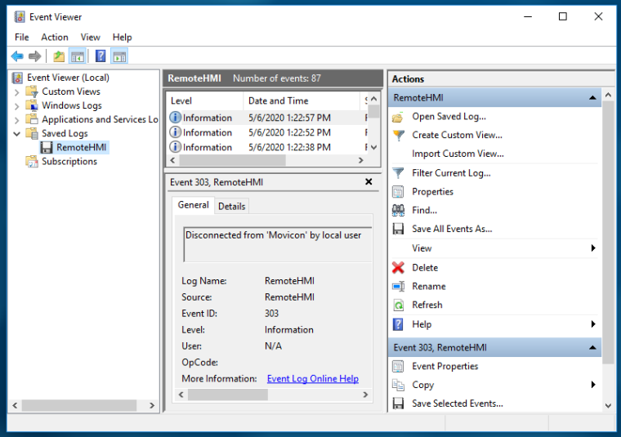
- You can find all events on the list.
Activating the Pro Licence
| The UWF filter must be deactivated before you can carry out this process. |
| If the Thin Client has internet access, you can activate the Pro Licence online via the firmware. If not, you need to request the activation code from remotehmi-licensing.stahl.de |
Activating the licence online via internet access
- Open the Maintenance menu.
- Make sure the Thin Client has internet access.
- In the Pro Edition License Activation menu, activate the Online function.
- Enter the licence key in the Product key field.
- Enter the name of the company in the Company Name field.
- Enter the name of the licence holder in the Name field.
- Enter the e-mail address of the licence holder in the Email Address field.
- Click on Activate Pro License.
The system will issue a message.
If the activation has been successful, the Pro Edition License Activation section will be hidden.
Activating the licence offline
| In order to activate the licence you will need the device's installation ID and the product key (licence key). You will also need a device with internet access. |
- Open the Maintenance menu.
- In the Pro Edition License Activation menu, activate the Offline function.
- In the browser, go to the following website: remotehmi-licensing.stahl.de.
- Go to page License Activation.
- Fill in the form and request the activation code.
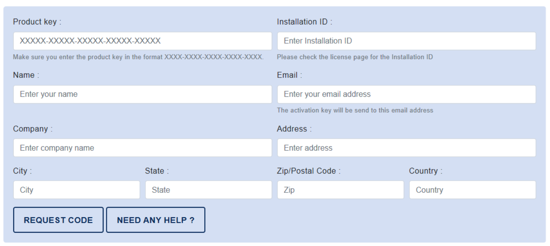
- NOTE:
You will receive an e-mail with the activation code to the e-mail address specified in the form. This may take up to five minutes. If you receive no such e-mail, please check your spam folder.
- NOTE:
- In the Maintenance menu, enter the product key in the Product key and the activation code in the Activation Code field.
- Click on Apply Pro License.
The system will issue a message.
If the activation has been successful, the Pro Edition License Activation section will be hidden.
Activating Windows
| The UWF filter must be deactivated before you can carry out this process. |
The Windows 10 IoT Enterprise LTSC operating system is pre-installed on delivery. If Windows 10 IoT Enterprise LTSC is deactivated after a system reset for example, you can re-activate it via telephone or internet access. A system dialogue will guide you through the re-activation via telephone.
Activating the operating system via telephone
| Activation is carried out via Microsoft's telephone service. |
- Open the Maintenance menu.
- In the Windows Activation window, click on Activate by phone.
The Windows activation system dialogue will start. - Select your country or region in the Select your country or region window.
- Click on Next to navigate to the Call and provide your installation ID window.
- Dial the telephone number given and follow the instructions given in the telephone dialogue.
- Click on Next to navigate to the Enter your confirmation ID window.
- Enter your confirmation ID.
- Click on Activate Windows to activate the operating system.
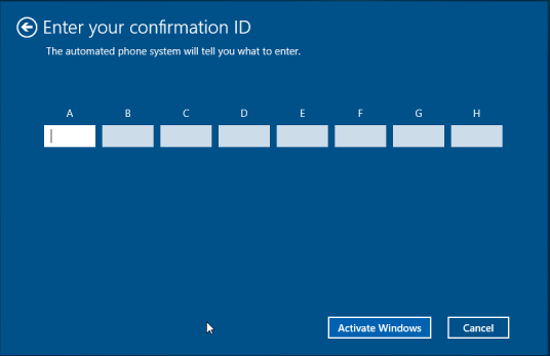
The system will issue a message.
If the activation has been successful, the Windows Activation section will be hidden.- The Information menu lists the activated operating system under System.
Activating the operating system via an internet connection
| The Thin Client needs to have internet access. |
- Open the Maintenance menu.
- In the Windows Activation window, click on Activate over Internet.
This process may take up to one minute. - Wait until the system issues a message.
If the activation has been successful, the Windows Activation section will be hidden.- The Information menu lists the activated operating system under System.
System and proxy settings
The System & Proxy menu menu features the following options:
- Change computer name
- Change the proxy server settings for VNC und Remote HMI Device Manager (RDM)
- Configuration of the remote access
- Saving login data for the Admin account
Accept or discard settings
- Click on Apply to accept the settings.
- Click on Revert to discard the changes.
Change computer name
The Thin Client can be addressed via the IP address or the computer name in the network. The computer name can be used for remote access to the Thin Client via VNC, for example. The computer name should therefore be unique in the network.
- Enter the name in the Computer Name field.
- NOTE:
It might make sense in large networks to enter a description too, in order to be able to identify the device faster.
- NOTE:
- Enter an informative description of the device in the Description field.
Changing date, time and number format
Use this option to change the formats of date and time.
Power consumption
The operating system can manage power consumption on a system-wide basis. The system will shut down and resume quickly, and wake up when required.
Change the proxy server settings
Use the proxy server to control and limit access to internet resources, for example. The client request is forwarded to the target server with the IP address of the proxy server.
Using a proxy server
- Identify the IP address or the network name of the proxy server.
- Activate the Use a Proxy Server function.
- Enter the IP address or the network name of the proxy server.
Don't use a proxy server
- Deactivate the Use a Proxy Server function.
Configuration of the remote access
Configuration of remote access to the Thin Client via VNC and RDM
- Activate Allow configuration export/import via RemoteHMI Device Manager to allow the export and import of the Thin Client configuration via the RemoteHMI Device Manager.
- Activate Allow remote access via VNC to allow the VNC remote access to the Thin Client.
- Specify a password for remote access.
- As an option, specify a password for read-only remote access.
- Click on Advanced VNC Server Configif you need to change the VNC settings.
- Click on Input blocking during remote access to define access behaviour during a remote connection.
- Activate Off to allow local and remote operation during remote access.
- Activate Local to block local operation of the Thin Client during remote access.
- Activate Remote on local activity, inactivity timeout = 3 sec to block the remote operation via local operation during remote access.
This block is removed if no local operation occurs during a specified idle period. The factory setting for this idle period is 3 seconds. This can be adjusted. - To adjust the idle period, click on Advanced VNC Server Config.
Saving login data for the Admin account
You can save login data for access to the Windows Administrator account under Windows Admin Account Login Credentials. The login data is needed to start applications via the firmware that require Administrator or other elevated rights.
If you save the login data,
- you no longer need to enter the data every time you start the app
- users who do not know the login data can start the app
- Enter the login data of the Windows admin account in the Name and Password fields.
Protection
The Protection menu features the following options:
- Activating firewall and virus protection
- Activating write protection for the SSD
- Activating the USB lockdown
- Configuration of system behaviour during restart
Accept or discard settings
- Click on Apply to accept the settings.
- Click on Revert to discard the changes.
Activating firewall and virus protection
We recommend you activate the Windows firewall and the virus protection, and allow all necessary security updates. In its factory state, these functions are activated.
Activating Windows security
| The Thin Client must be connected to the internet for the automatic download of security updates. If this function is deactivated, you have to manually keep up with, acquire and implement updates at the system level. |
- Activate the Windows Firewall.
- Activate the Windows Defender
- Activate the Windows Security Updates to allow the installation of security updates.
Activating write protection for the SSD
The Unified Write Filter (UWF) is a write protection for the SSD and can be activated in the Protection menu. Use the UWF to protect the SSD from accidental writing. It transfers all write access to an overlay buffer in the RAM.
This prevents premature wear of the SSD and a corruption of system files after a sudden network failure. Also, viruses and Trojans are not permanently stored in the system, since all changes stored in the overlay buffer are deleted when the device is switched off.
NOTICE Requires system re-start For the memory protection (UWF) to be activated the system needs to be restarted. |
Activating the data memory protection
- In the Protection menu, activate the Drive Protection (UWF) function.
- Confirm the request for a restart.
- After the restart, the data memory protection is activated.
Activating the USB lockdown
Depending on your security concept, you can block the use of USB devices or permit the use of connected USB devices in the Protection menu. You can allow the use of other devices can via the Teach-In function.
Blocking the use of USB mass storage devices
- Under USB Lockdown, activate the Block USB mass storage devices only function.
- Confirm your selection with Apply.
All USB storage devices are blocked.
Blocking the use of new USB devices
| Use this function to block all USB devices that are not or have never been connected to the Thin Client. |
- Open the Protection menu.
- Under USB Lockdown, activate the Block access to USB devices function.
- Activate Block new USB devices only.
- Confirm your selection with Apply.
The specifications of the connected USB devices will be saved.- New USB devices are blocked.
Allowing the use of connected USB devices
- Under USB Lockdown, activate the Block access to USB devices function.
- Connect the USB devices you want to permit.
- Activate Block all USB devices except connected.
- Confirm your selection with Apply.
The specifications of the connected USB devices will be saved.- All registered USB devices are cleared for use.
Clearing further USB devices for use (Teach-In)
- Under USB Lockdown, activate the Block all USB devices except connected function.
- Deactivate Block access to USB devices.
- If applicable, remove already connected USB devices and connect the new ones.
- Activate Block new USB devices only.
- Repeat steps 2 to 4 to add more devices.
- When you have added all devices, click on Apply.
- All registered USB devices are cleared for use.
Configuration of system behaviour during restart
The HORM function (Hibernate Once Resume Many) allows for a fast start of the Thin Client from a fixed system image (snapshot). After the start, the system is in exactly the same state as when the last HORM snapshot was taken. This means that applications running in the Pro version do not have to be restarted, but are available right away.
NOTICE Requires backup of device configuration Taking a snapshot (image of main memory) requires a system restart.
|
Taking a snapshot of the main memory
- Activate memory protection under Drive Protection (UWF).
- Activate the Resume System from same snapshot on every device startup function.
- Confirm your selection with Apply.
- Confirm the request for a restart.
- Click on Snapshot to create an image of the main memory.
- Confirm the request for a restart to create the snapshot and restart the system.
| The restart may take some time. If the system does not start properly, you can use the "Recovery Stick" to return it to its factory state. The stick is part of the delivery. Depending on the recovery stick you can also save the device configuration as a backup. |
Display settings
The Display menu features the following options:
The following parameters are available to adjust the screen display:
- Resolution: resolution and orientation
- Multi Display: order (topology) and main display (if more than one display is connected)
- Scaling: scaling
- Windows Text and Items: size of text and image elements for Windows applications
- Screen Saver: screen saver
- Backlight Auto Dimming: automatic dimming of backlight (for a touchscreen)
Accept or discard settings
- Click on Apply to accept the settings.
- Click on Revert to discard the changes.
Adjusting display settings
Adjusting resolution
- Go to Resolution and select the resolution of connected displays (6 max.)
- Activate Portrait Mode to display screen content in portrait mode.
Adjusting scaling
- Activate Always stretch to fullscreen to always display screen content in full screen mode.
This function may result in a distorted display. - Activate Maintain aspect ratio to maintain the aspect ration of the screen content.
Changing Windows text and element size
| The settings are only valid for local applications and RDP connections with Windows 10/Server 2012. A greater size makes the touch screen easier to operate. Values of over 100% may result in a faulty display of local apps and apps executed via RDP. |
- Select the desired size of Windows elements. We recommend 125%.
- If local apps and those executed via RDP are displayed incorrectly, reduce the value to 100%.
Activating the screen saver
- Activate the screen saver under Screen Saver.
- Click on After user inactivity of and specify the period of inactivity after which the screen saver should be activated (1 to 60 minutes).
- Click on Advanced to open the screen saver settings.
- Select a screen saver and confirm your selection.
- Open the Display menu.
- The screen saver starts after a period of inactivity greater than the one specified.
Automatic dimming of backlight
| To increase the service life of the backlight we recommend you activate the Backlight Auto Dimming function. |
- Activate the automatic backlight dimming under Backlight Auto Dimming.
- Click on After user inactivity of and specify the period of inactivity after which the dimming function should be activated (1 to 60 minutes).
- Click on to brightness level and specify the level to which the backlight should be dimmed (1% to 80%).
- The backlight is dimmed to this level after a period of inactivity greater than the one specified.
Adjusting multi-display settings
You can adjust the resolution and orientation for each display. You can also specify the order (topology) and the main screen.
| The name of the displays used in the firmware is that of the port at which the display is connected. |
Adjusting the display order
- Select the resolution of each display in the Topology field.
- Activate the Clone function if you want to display the screen contents on both displays.
- Activate the Extend function for the second display to be an extension of the main display.
- Select the main display under Primary Display Position (left, right).
User Interface
The User Interface menu features the following options:
- Changing the size of the menu and the virtual keyboard
- Changing the keyboard layout
- Configuring user interface functions
Accept or discard settings
- Click on Apply to accept the settings.
- Click on Revert to discard the changes.
Changing the size of the menu and the virtual keyboard
| It is not possible to change the keyboard via the firmware on Shark devices with Intel i7 CPU. |
Adjusting the size of the menu and the keyboard
- Open the User Interface menu.
- Click on RemoteHMI and use the scroll bar to adjust the size of the menu.
- Click on Virtual Keyboard and use the scroll bar to adjust the size of the keyboard.
Restoring device-specific factory settings
- Open the User Interface menu.
- In the RemoteHMI window, click on Default to restore the device-specific factory settings for the menu size.
- In the Virtual Keyboard window, click on Default to restore the device-specific factory settings for the keyboard size.
Changing the keyboard layout
The factory setting for the keyboard layout is the US layout (QUERTY). This applies to the virtual and external keyboards (optional). The language layout is independent of the design, coding, position and number of keys on the physical keyboard.
| The language of the Thin Client system console is set to English, and this can NOT be changed. |
The firmware supports various language layouts for the virtual and external keyboards. The country codes for the language layouts are those listed in ISO 3166-1, subsection ALPHA-2.
| Country code | Name of country |
|---|---|
| BE | Belgium |
| WC | Brazil |
| CH | Switzerland |
| CZ | Czech Republic |
| DE | Germany |
| DK | Denmark |
| ES | Spain |
| FI | Finland |
| FR | France |
| GR | Greece |
| HU | Hungary |
| IT | Italy |
| NL | Netherlands |
| NO | Norway |
| PL | Poland |
| PT | Portugal |
| RU | Russian Federation |
| SE | Sweden |
| SI | Slovenia |
| TR | Turkey |
| US | United States of America |
Changing the keyboard layout
- Open the User Interface menu.
- Go to Keyboard Layout and select the keyboard layout you want.
- If the keyboard layout you want is not listed, use Add/Remove to add a layout.
Configuring user interface functions
Hotkey for opening the firmware
You can specify how to open the firmware as follows:
- The hotkey toggles the dashboard between closed and minimised state (standard)
- The hotkey toggles the dashboard between closed, minimised and expanded state (Hotkey toggles all 3 menu states)
Go to Ignore hotkeys if RemoteHMI menu is closed to specify whether the hotkeys for calling up remote connections and applications should be ignored when the dashboard is closed. The defined hotkeys are only effective if the dashboard is open. Use this function to use the same hotkeys for different purposes.
If you have defined a hotkey for opening the dashboard, this hotkey will always be active. It is not affected by this function.
Configuring the user interface
- Open the User Interface menu.
- Activate Show computer name in title to show the computer name in the minimised dashboard.
- Activate Auto hide after connect to hide the dashboard after the connection has been successfully established.
- Activate Hotkey toggles all 3 menu states to toggle between all three dashboard states via the hotkey.
- Define the hotkey for opening the dashboard.
- Activate Ignore hotkeys if RemoteHMI menu is closed if the hotkeys should be ignored when the RemoteHMI menu is closed.
Keyboard and pointing device sharing
This menu item lets you share the keyboard and pointing device with other HMIs. To use this function both the HMIs should be connected with an RS-422 cross link cable.
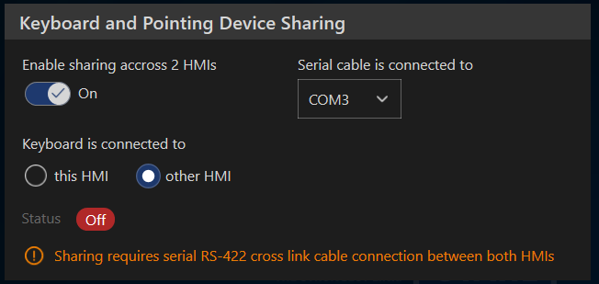
| The keyboard / mouse sharing is not compatible with the sleep mode. |
Once the sharing option is enabled, this window will pop up, showing the status of keyboard sharing.
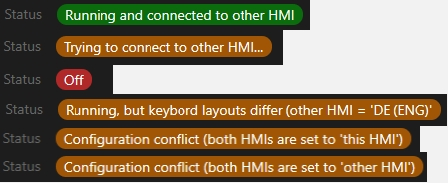
Once the connection has been established, the keyboard icons on both HMIs will light up permanently.
The keyboard icon on the currently active HMI will light up green,  while the keyboard icon of the HMI in standby mode will light up orange
  . If the connection is interrupted, both icons will start flashing, but will retain their colour.
Configuring how changes are applied
- Open the User Interface menu.
- Activate Apply if you wish to apply the changes after leaving the register.
- The changes are applied once you change to a different register.
- Activate Revert if you wish to apply the changes via the Apply button.
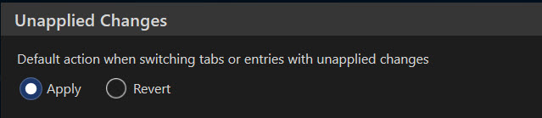
If you don't click on Apply the changes will be discarded.
Keyboard Wedge
Use the Keyboard Wedge function to send ASCII-based data from a serial interface as keyboard-generated characters to the host. The transmitted data is interpreted by the target application as real keyboard input. Use this function to transform scans from readers such as barcode scanners or RFID readers into keyboard input.
NOTICE This process requires Administrator authorisation. |
The Keyboard Wedge menu features the following options:
Accept or discard settings
- Click on Apply to accept the settings.
- Click on Revert to discard the changes.
Adding a device
Installing a driver from a USB mass storage device
| Deactivate the UWF filter to install the device driver. |
- Check whether the Thin Clients meets the system requirements of the input device.
- Make sure that the USB mass storage device is known or deactivate the USB lockdown.
- Open the Maintenance menu.
- Click on Add / Remove Device to open the Thin Client system settings.
- Install the device driver on the Thin Client.
- Connect the input device to a free COM port. The name of the COM port depends on the HMI device platform.
- Open the Keyboard Wedge menu.
- Activate Simulate keyboard input via a connected reader/scanner device.
- Click on + Add / Auto Connect to connect the device.
Parameterising the COM interface
| The configuration of the COM interface has to conform with the reader's specifications to ensure correct data transmission. |
| Port | Specifies the serial port where the reader's data is received |
| Baud rate | Specifies the data transmission rate of the COM port, must correspond to that of the reader 2400 / 4800 / 9600 / 19200 / 38400 |
| Data Bits | Specifies the length of the transmitted data bits 7: a character is 7 bits long 8: a character is 8 bits long (usual value) |
| Stop Bits | Specifies the number of bits signifying the end of a data transmission process 1: stop bit is one bit long (usual value) 2: stop bit is two bits long |
| Parity | Specifies whether and how the parity test bit should be calculated NONE: no bit testing process EVEN: sum of the bits of a character to be transmitted is an even number ODD: sum of the bits of a character to be transmitted is an odd number |
- Open the Keyboard Wedge menu.
- Go to Serial Communication to select the COM port of the connected device.
- Select a suitable baud rate for the connected device.
- Specify the following parameters Data Bits, Stop Bits and Parity for the serial interface.
An active connection is shown in the status.
Configuring the handling of control characters
| You can specify whether control characters for a line break sent by the barcode scanner should simulate the pressing of the Enter key. This may be necessary so that a scanned barcode is correctly completed and applied. |
- Activate Translate CR to Enter-key to use "CR" as a control character.
- Activate Translate LF to Enter-key to use "LF" as a control character.
Server keyboard layout settings
| For all scanned characters, particularly control characters, to be processed correctly, the keyboard layouts of both devices must match. If the Thin Client is set to US layout, this layout must also be selected for the connected server. For connections via a KVM box this layout must also be selected in the user interface of the KVM box. The following options are available under Server Keyboard Layout US American keyboard layout: QWERTY |
- Set Server Keyboard Layout to "US" to ensure faultless data transmission
Specifying data transmission delay
| KVM Keystroke Delay specifies the delay before the next character is transmitted to a KVM box. This delay ensures that no character is lost during a fast data transmission to the host. The standard value is usually sufficient. |
- Only increase this value if characters are lost in the transmission.
- Use the scroll bar or the arrows to specify the delay value (from 1 to 50ms).
Access Control
Use the Access Control menu to activate the three-tier user management and to configure the automatic user logout.
Accept or discard settings
- Click on Apply to accept the settings.
- Click on Revert to discard the changes.
Activating user roles
Activating user roles
- Open the Access Control menu.
- Activate the 3-tier access management under Main.
- Activate Limit Operator access to Dashboard to hide the dashboard's register bar from the operator.
Operators can only see the dashboard data. - Enter the different passwords for the "Engineer" and "Admin" user roles in the Login Passwords fields.
- Repeat the passwords. If the passwords are incorrect, the system will issue an error message.
- Click on Apply to accept the settings.
- Users with roles "Engineer" and "Admin" have to logon with their passwords.
Activating automatic logout
An automatic logout can be specified for the Admin and Engineer user roles. A user is automatically logged off if he or she has been inactive for more than the pre-defined logout time.
- Open the Access Control menu.
- Activate Auto Logout to activate the automatic user logout.
- Click on after user not operating RemoteHMI Menu for to specify the logout period (1 to 60 minutes).
Connections
The Connections menu features the following options:
Accept or discard settings
- Click on Apply to accept the settings.
- Click on Revert to discard the changes.
Allowing multiple simultaneous connections
| Requires a Pro licence. |
Use the Allow Multiple simultaneous connections function to allow parallel use of multiple remote connections (multi-session connections). This enables you to:
- Change between remote connections without having to terminate a connection
- Display several remote connections on one split screen
- Display several remote connections on two or more screens
Activating multi-session connection
- Open the Connections menu.
- Activate Allow Multiple simultaneous connections to allow the set-up of several remote connections.
Auto reconnect
Go to On connection loss, auto reconnect to specify an interval after which a reconnect is attempted after a connection has been lost.
| This function must be activated separately for each remote connection in the address book entry. |
- Open the Connections menu.
- Click on On connection loss, auto reconnect after to specify after how many seconds a reconnect should be started (1 to 30 seconds).
Automatic check of host status
The Connection Health Check function is used by the Thin Client to send cyclical pings (echo requests) to all servers configured in the address book. The result of these requests is shown as the connection status in the address book.
The connection health check only works properly if the servers' firewalls permit answering to an echo request.
You can switch off this function if you do not require an echo request. In this case the status of the connection is not shown in the address book.
Activating health check
- Open the Connections menu.
- If you are using a firewall, check whether the firewall permits echo requests, and activate the echo request.
- Activate Ping servers to show reachable state on Address Book buttons to constantly monitor the remote connections.
- Click on Apply .
- The Thin Client monitors the remote connections and shows the status of the active connections.
| If the echo request from the host is not possible or not wanted, deactivate Ping servers to show reachable state on Address Book buttons. The remote connections are not monitored. Not connection status is shown. |
Import and Export
The firmware supports the import and export of most settings to the encrypted "RemoteHMI.config" file. This file can be exported to a USB mass storage or a network directory. A filter can be used for the import to specify which settings should not be imported (e.g. network settings).
This function enables you to
- Restore the device configuration after a system reset
- Copy the device configuration to another Thin Client
The Import & Export menu features the following options:
NOTICE This process requires Administrator authorisation. |
Importing a device file
| The UWF filter must be deactivated before you can carry out this process. |
NOTICE USB mass storage in hazardous areas Only use intrinsically safe USB mass storage devices in hazardous areas. |
You can exclude the following settings from the import:
- Application List (see App management)
- Network Settings (see Network)
- Access Control Password (see Access Control)
NOTICE Import known passwords only! Make sure you know the defined passwords before starting the import. |
Importing a configuration file from a USB mass storage device
- If the USB lockdown is activated, make sure the USB mass storage device is known. Otherwise, deactivate the USB lockdown.
- Connect the USB mass storage device.
- Open the Import & Export menu.
- Select the configurations you do not require from the import filter.
- Activate USB Flash Drive.
- Click on Import.
A progress bar shows how far the import has proceeded.
If the process has been completed successfully, the firmware will issue a message. - If an error message is issued, check whether the USB mass storage device has been inserted correctly and that it is not write-protected.
- Remove the USB mass storage device before restarting the device.
- NOTE:
If you do not remove a bootable Recovery PE Lite USB mass storage, the device will expect the installation of the firmware during the restart.
- NOTE:
- Click on Apply to apply the imported settings.
- Restart the device to activate the changed configuration.
Importing a configuration file from a network directory
- Save the import file in the network directory.
- Select the configurations you do not require from the import filter.
- Activate Network.
- Click on Select to select the network directory from the Windows Explorer.
- Click on Import.
A progress bar shows how far the import has proceeded.
If the process has been completed successfully, the firmware will issue a message. - Click on Apply to save the imported settings.
- Restart the device to activate the changed configuration.
Exporting a device file
Exporting a configuration file to a USB mass storage device
- If the USB lockdown is activated, make sure the USB mass storage device is known. Otherwise, deactivate the USB lockdown.
- Connect the USB mass storage device.
- Activate USB Flash Drive.
- Click on Export.
The USB mass storage device is checked.
If it contains no configuration file it will be saved immediately. - If it already contains a configuration file, you need to confirm that the existing file will be written over.
If the process has been completed successfully, the firmware will issue a message. The RemoteHMI.config file is saved in the root directory of the USB mass storage device. - Remove the USB mass storage device.
| If you do not remove a bootable Recovery PE Lite USB mass storage, the device will expect the installation of the firmware during the restart. |
Exporting the configuration file to a network directory
- Activate Network.
- Click on Select to select the network directory from the Windows Explorer.
- Click on Export.
The network directory is checked.
If it contains no configuration file it will be saved immediately. - If it already contains a configuration file, you need to confirm that the existing file will be written over.
If the process has been completed successfully, the firmware will issue a message. The RemoteHMI.config file is saved on the network directory.
Firmware updates
Use the Update menu to carry out an Update of the firmware from a USB mass storage device or a network directory.
NOTICE This process requires Administrator authorisation. |
The UWF filter must be deactivated so that the firmware can be saved.
The menu will show the following information:
- Installed: revision version of the installed firmware
- Available: available firmware, appears when an update file has been found
- Source: source of the available update, appears when an update file has been found
Firmware update
NOTICE USB mass storage in hazardous areas Only use intrinsically safe USB mass storage devices in hazardous areas. |
Carrying out a firmware update from a USB mass storage device
NOTICE Data loss when aborting update installation During this process the firmware will be restarted. Do not interrupt the process and do not switch off the operating terminal. |
- If the USB lockdown is activated, make sure the USB mass storage device is known. Otherwise, deactivate the USB lockdown.
- Connect the USB mass storage device.
- Click on Check for Update.
The firmware trawls through the connected USB devices for available updates.
If an update is available it will be shown under Available. - Click on Install Update to install the update.
The installation process starts.
If the update has been installed, the menu will show a change protocol. - Remove the USB mass storage device.
Updating the firmware from a network directory
NOTICE Data loss when aborting update installation During this process the firmware will be restarted. Do not interrupt the process and do not switch off the operating terminal. |
| Our Support department will provide you with the update file. |
- Store the update file on the network directory.
- Click on Select to select the network directory from the Windows Explorer.
- Click on Check for Update.
The firmware trawls the network directory for available updates.
If an update is available it will be shown under Available. - Click on Install Update to install the update.
The installation process starts.- Once the update is finished, the system will issue a message.
Useful tips
Error fixing
| Touchscreen operation is inaccurate | ||
| Cause | Action | Who |
| Touchscreen is dirty |
| Operator |
| Incorrect calibration |
| Operator |
| Damaged display front |
| Engineer |
| Base station display is black | ||
| Cause | Action | Who |
| Cable connection between base station and HMI device interrupted |
| Engineer |
| Screen is black and keyboard is lit | ||
| Cause | Action | Who |
| One-off fault due to electrical surge, for example |
| Engineer |
| Screen is black and keyboard is not lit | ||
| Cause | Action | Who |
| Cable connection between base station and HMI device interrupted |
| Engineer |
| The network connection is frequently interrupted or is unstable | ||
| Cause | Action | Who |
| Cable not correctly connected inside the terminal box |
| Engineer |
| Cable too long |
| Engineer |
| System fails to restart after request to do so | ||
| Cause | Action | Who |
| The most recent process has caused a fatal system error. |
| Engineer |
| Bluetooth barcode scanner is not working | ||
| Cause | Action | Who |
| Battery charge too low |
| Engineer |
| Barcode scanner not paired with base station |
| Engineer |
| Cable connection between base station and HMI device interrupted |
| Engineer |
| Wrong passkey for connection was entered |
| Engineer |
| Barcode scanner defective |
| Engineer |
| Wired barcode scanner is not working | ||
| Cause | Action | Who |
| Cable connection between barcode scanner and base station interrupted |
| Engineer |
| Barcode scanner defective |
| Engineer |
| No connection possible between Remote HMI Device Manager and Thin Client | ||
| Cause | Action | Who |
| Incorrect network configuration |
| Engineer |
| Access from Device Manager to Thin Client not permitted |
| Engineer |
Activating VNC server system on the host
The following explains the procedure for the TightVNC server.
In order to be able to establish a VNC connection, the VNC server system must be activated on the host. The VNC service acquires the IP address needed for this connection from the settings of the PC's network connection. Depending on the configuration, the IP address is specified manually or allocated by a DHCP server. In the firmware's address book, this IP address is defined as the server IP of the VNC connection.
The way this connection is established depends on the settings of the VNC server and can either be
- a direct connection that is not password-protected
- a connection with VNC password
- a connection with Windows password
VNC server parameters
The following parameters are necessary to configure the VNC connection. The actual name may vary depending on the VNC server system used.
VNC server address
The VNC server address is the same as the server IP address or the server name.
The VNC server systems usually have several ways to find out the address with which the server can be addressed in the network.
In addition to the IP address, port numbers can be allocated in the settings of the VNC server, with which the server can be addressed in the network.
The target address of the Host PC must be located in the network of the Thin Client or must be contactable from the Thin Client.
Ports
Accept connections on port
| Defines the server connection port for data transmission (standard port 5900). If you are using a different port due to network conflicts you need to configure this port. If there is a firewall, check the settings. |
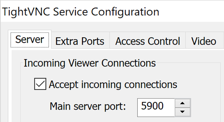
VNC password
VNC server applications authenticate users of a VNC connection via a password. The following password procedures are available:
| None | No password is defined. The VNC server on the host allows access to each remote PC (Remote HMI) requesting a VNC connection via its address. |
| VNC password | Defines one or more passwords (depending on VNC server application) which the VNC server system requests from the Client for authentication purposes. |
| Windows password | Uses the Windows access authentication. The VNC server system grants the client access to the host if logged on with the valid Windows password. |
| Single sign on | Uses Windows access authentication and authentication via Windows-based login. The VNC server system grants access to the client if the user has entered a valid Windows login. |
Encryption
Most VNC servers use encryption to protect the transmission of image, mouse and keyboard data from unauthorised access.
| Always on | Data is always encrypted |
| Prefer on | Data is always encrypted unless the Thin Client requests no encryption (standard). This setting is necessary if the configuration requests no encryption. |
| Prefer off | Data is not encrypted unless the Thin Client requests encryption. This setting is necessary if the configuration requests encryption. |
Prompt local user to accept connections
Allows the host user to accept or reject a connection request. Since the host is usually used for direct remote access, this setting is not relevant for the Thin Client connection.
Start VNC Server automatically with Windows
Specifies that the VNC server system is automatically activated when Windows is started. If this function is not activated, the remote access must be explicitly started after a system start of the host PC.
DRDC-Client connection
EMERSON's DeltaV®-Remote-Desktop-Connection-Client (DRDC) allows access to a virtualised operator or engineering workstation within a DeltaV®-virtualisation architecture. This way, applications that run on a distributed control system can be accessed via the Ethernet.
You can add a DRDC connection via an app in the Applications register (see Adding apps).
| Requires a Pro licence. |
Digital Signature
Digital signature of R. STAHL HMI Systems programs
All of R. STAHL HMI Systems' program files that contain executable code (RemoteHMI, DeviceControlPanel etc.) have a digital signature, including the setup. This digital signature is used to ensure that program files, once published, are not changed and that the software is from the manufacturer. It is based on digital certificates issued by an authorised and trustworthy source to a person or company identified by this source.
Two parts must be verified to check a digital signature:
- Digital Signature: This is a hash value which has been generated by a hash function for a file and has been encrypted with the private key of the underlying certificate.
- Certificate: A software is from a manufacturer if it has been signed with the manufacturer's certificate. It therefore must be ascertained whether the correct certificate has been used, and whether the certificate is valid. In particular, this means that the issuer of the certificate, its owner, the certification path, the serial number and the fingerprint must be checked.
Checking the digital signature
The information needed is found under the Digital Signaturestab: find the file in the Explorer, select it with a right mouse click so that the context menu opens and select Features. If you don't see this tab, the file has no signature or the signature has been removed - the check has failed.
 Select, if available, SHA-256 and click on Details.
Details of the digital signature
A new window with general signature information opens up. The key information on this page is that the digital signature is valid.
The signature is valid if:
- the file, once signed, has not been changed: the calculated hash value based on the selected hash function is the same as the decrypted hash value in the signature.
- the chain of certification is complete, and
- the underlying certificate (which could be fake) is ok.
If this is not the case, an error message marked by an error symbol will pop up, for example:
Checking the certificate
Click on Show Certificate to check the certificate that is used.
A new window will pop up with three tabs that show details of the certificate that was used for the signature of the file. Check that the "issued for" and the "issued by" fields have the following values, otherwise the check has failed:
Issued for: R.Stahl HMI Systems GmbH
Issued by: GlobalSign Code Signing CA
or Sectigo Public Code Signing CA EV R36
Should you wish to check other elements such as finger print or serial number, please get in touch with our Technical Support so we can let you know the relevant check sum. Depending on the product, the signature may have been issued by different sources.
Source
Texts copied from:
Addresses
R. STAHL HMI Systems GmbH Adolf-Grimme-Allee 8 D 50829 Cologne | |||||
T: F: E: | (Sales Support) (Technical Support) (Sales Support) (Technical Support) | +49 221 768 06 - 1200 +49 221 768 06 - 5000 +49 221 768 06 - 4200 | |||
| |||||
